Set up your weekly availability
WhoAny staff memberWhereProfile tab → Availability → tap a day
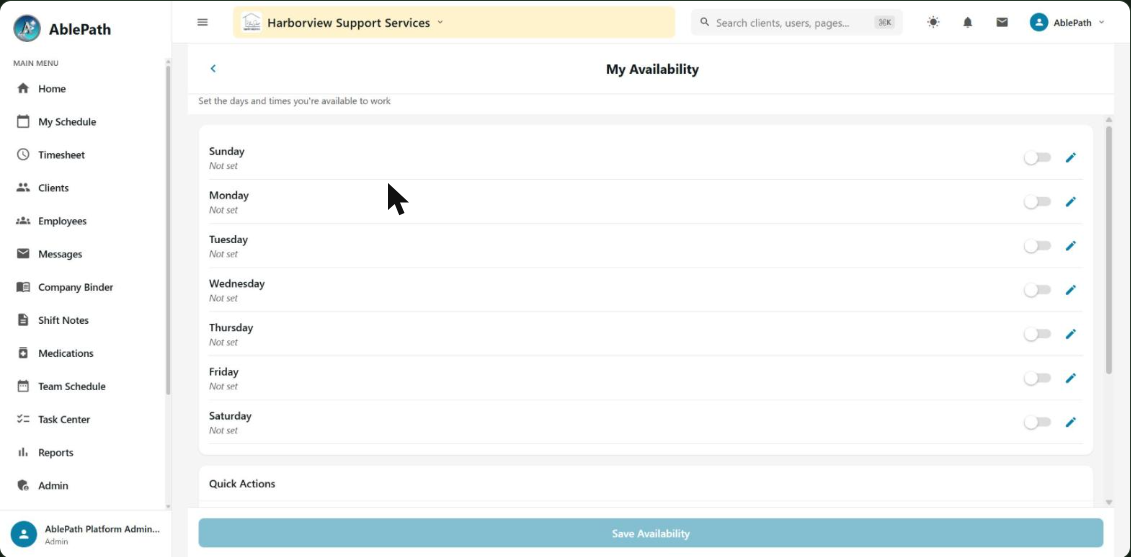
- Open your Availability screen and pick a day of the week.
- Set a Start Time and End Time — or mark the whole day unavailable.
- Add an optional note explaining the entry.
- Save.
GotchaYour entry doesn't go live immediately — it sits as a pending request until a supervisor approves it.
Approve or reject an availability request
WhoSupervisor and aboveWhereNot on the Admin menu yet — see note
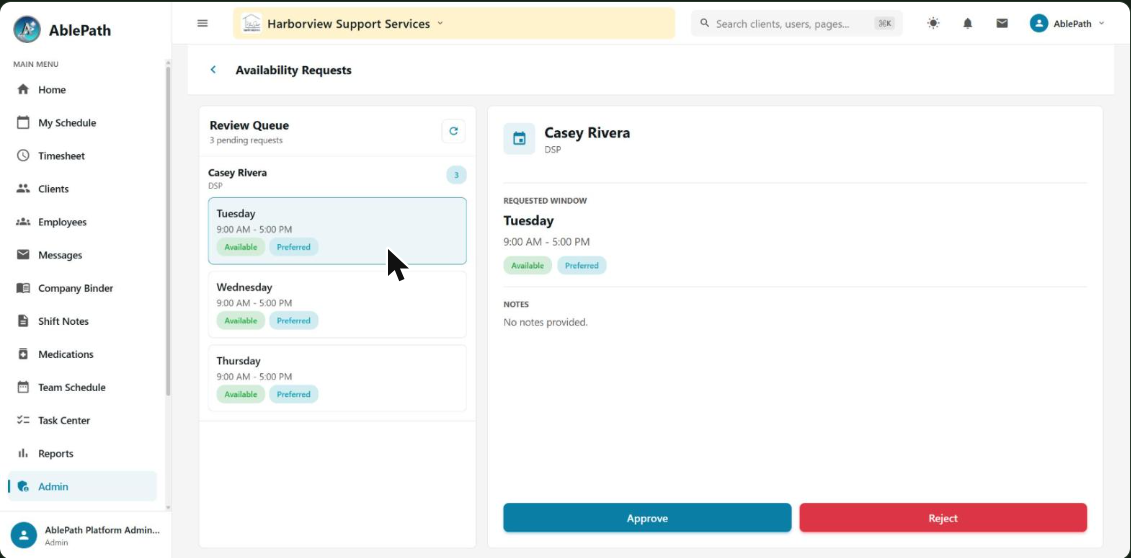
- Each pending request shows the staff member, day of week, time range, and an Available/Unavailable badge.
- Tap a request to open its detail.
- Approve it, or Reject it — rejecting opens an optional "Rejection Reason" field.
Navigation gapThis screen exists in the app but isn't wired into the Admin tab's menu — there's no tile for it under Employees & HR or Scheduling. Today it's only reachable by a direct link. If your team uses this regularly, ask AblePath support for a bookmark/shortcut to it rather than hunting for it in the menu.
Request time off
WhoAny staff memberWhereNo default tab or menu button — see note
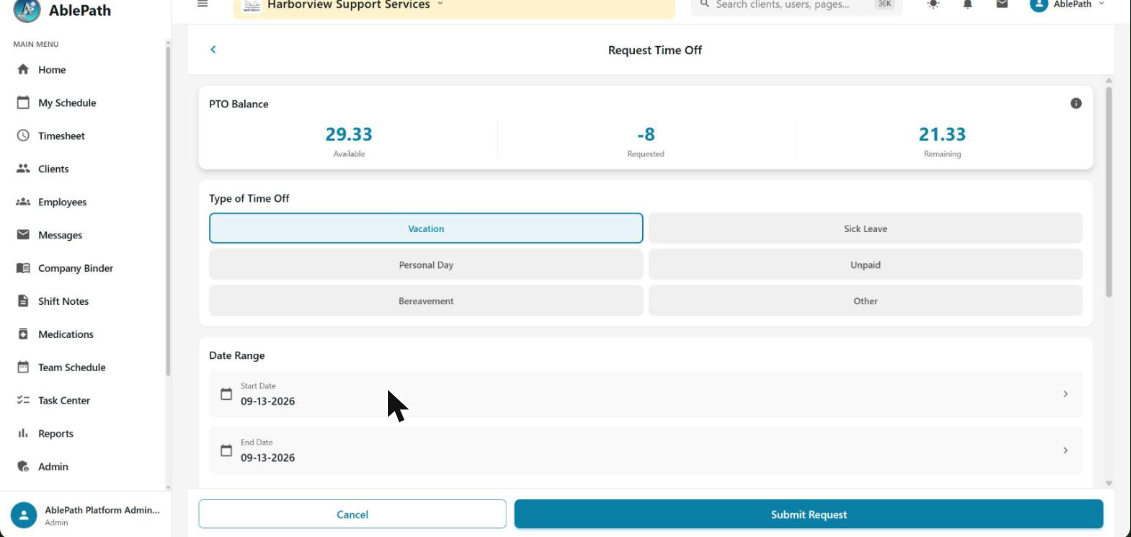
- The screen shows your PTO/Sick balance (Available / Requested / Remaining) if that type is balance-tracked.
- Choose the Type of Time Off: Vacation, Sick Leave, Personal Day, Unpaid, Bereavement, or Other.
- Set the Start Date and End Date.
- Choose a Duration: Full Day, Half Day, a specific scheduled Shift, or Custom hours.
- Add a reason if you'd like, then Submit Request.
Navigation gapTime Off isn't on any bottom tab or the Profile menu by default. The one built-in path is the Home tab's customizable Quick Links — if "Time Off" isn't already one of your tiles, tap Edit on the Quick Links section to add it. Worth asking your admin to add it for the whole team if staff request time off often.
Pick up an open shift
WhoDSP / Caregiver (self-service)WhereSchedule tab → Open Shifts (footer button)
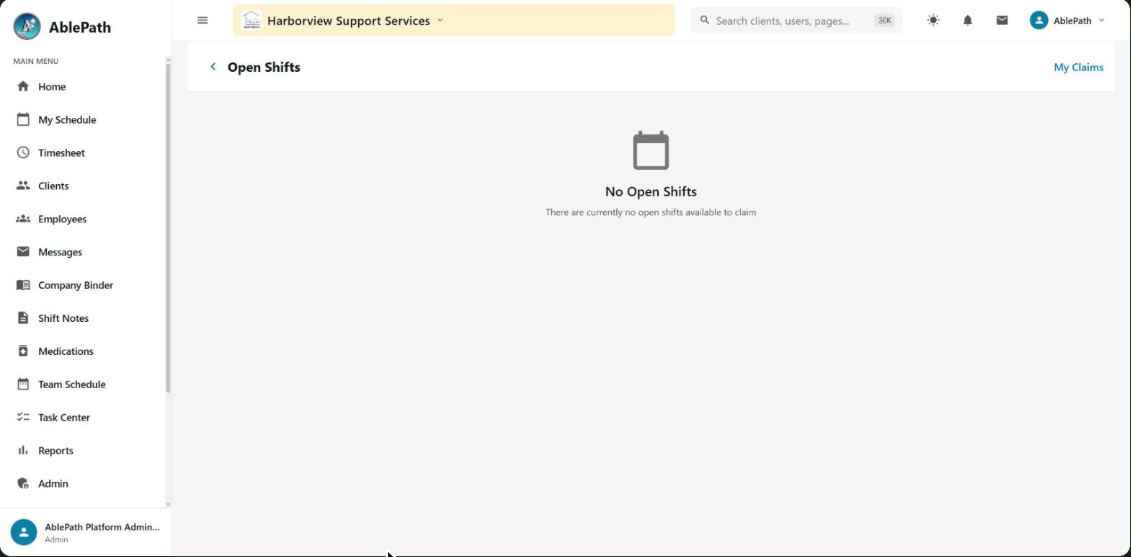
- Browse the list of open shifts by date, time, and client — the client's name stays hidden until your claim is approved.
- Tap a shift to expand it and add an optional note.
- Confirm to submit your claim — it appears under "My Claims" pending manager approval.
GotchaAn organization can turn self-claiming off entirely. If it's off, you'll see open shifts but a banner explains they can't be claimed directly.
Assign staff to an open shift
WhoManager and aboveWhereAdmin tab → Scheduling → Open Shifts
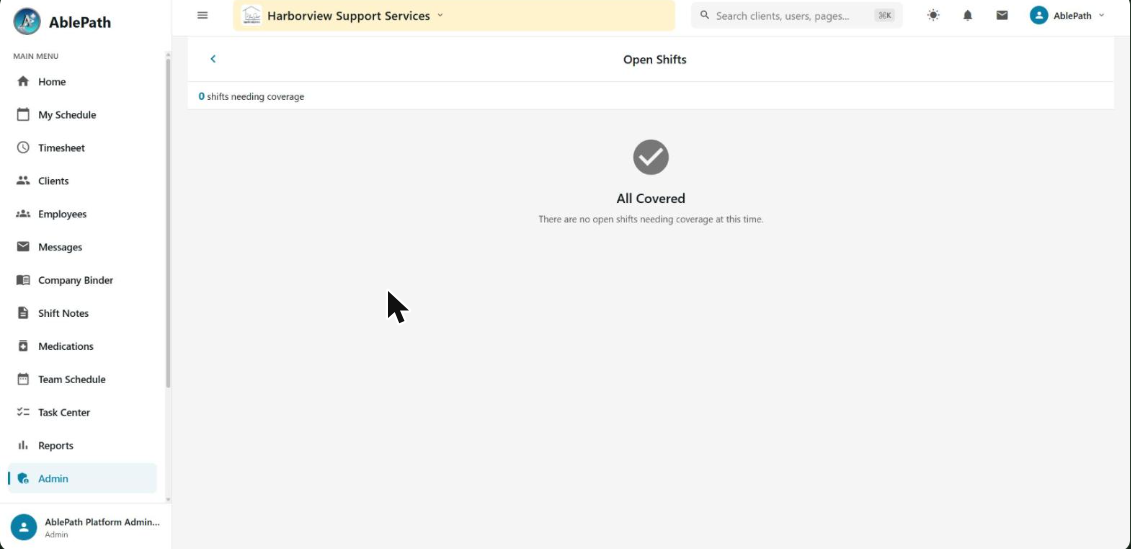
- See open shifts for the next 30 days, tap one to open it.
- Assign opens a list of active DSPs — for ILS clients, staff are flagged by ILS-qualification match.
- Pick a staff member to confirm the assignment.
GotchaAssigning an ILS-service shift also triggers a background sync of the ILS visit projection. If that sync fails, you'll still get a success message, but titled "Assigned — ILS Setup Needed" — check the ILS setup for that client. For last-minute call-outs (sick, emergency, no-call-no-show), there's also a "Send SOS" option that notifies eligible staff directly about an uncovered shift.
Request or approve a shift swap
WhoAny staff (request) · Manager and above (approve)WhereSchedule tab → Swap Requests (footer button)
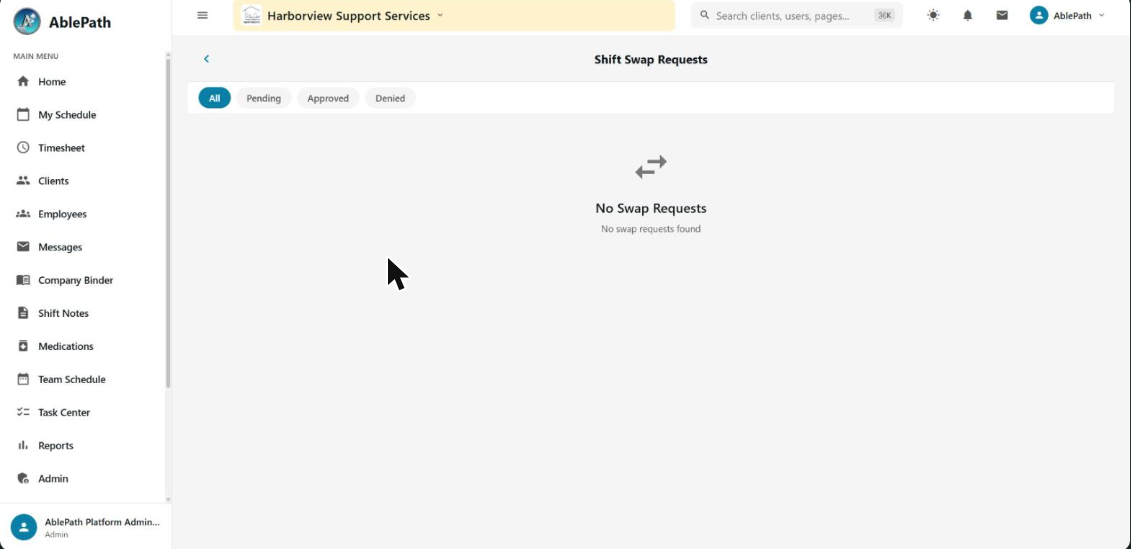
- To request: pick one of your shifts, name the coworker you'd swap with, and give a reason.
- To approve: open a pending request to see the requester, target coworker, shift date/time, client, and reason.
- Approve (with optional review notes) or Deny.
GotchaOn a fresh organization you may see a sample "Guide DSP ↔ Guide Coworker" swap in the list — that's a first-run walkthrough example, not a real pending request, and it can't actually be approved or denied.
Auto-generate a client's monthly schedule
WhoManager and aboveWhereAdmin tab → Scheduling → Schedule Manager → Generate Schedule
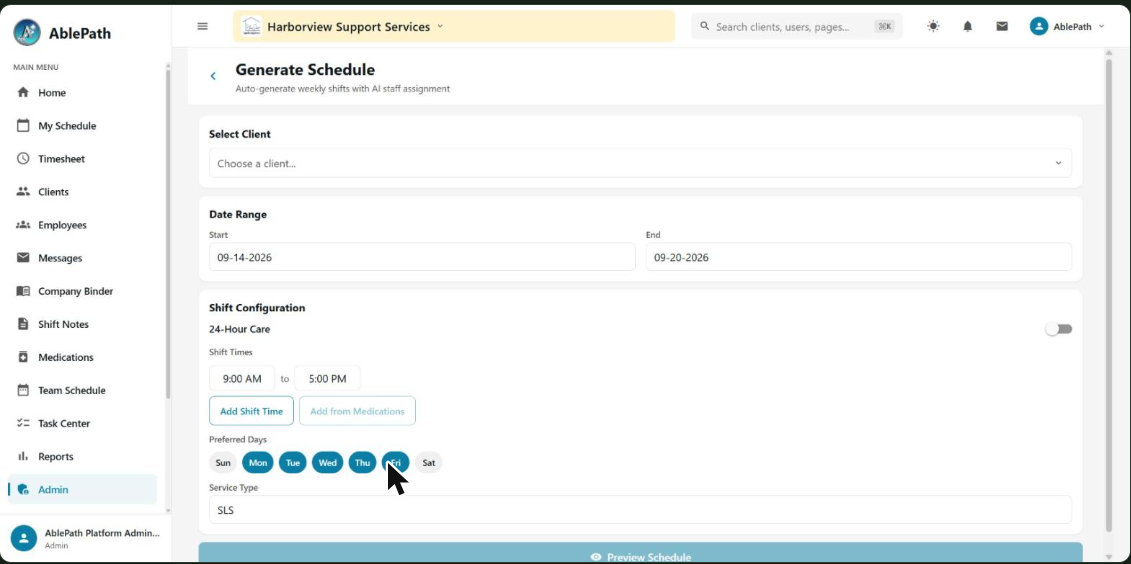
- Pick a Client — this pulls in any saved scheduling preferences they have (24-hour care toggle, shift split, service type, preferred days).
- Set the Date Range (defaults to next Monday–Sunday).
- Under Shift Configuration: toggle 24-Hour Care — if on, choose a split (3×8hr, 2×12hr, or Custom); if off, define individual shift times, or use Add from Medications to auto-derive shift windows around the client's scheduled medication times.
- Pick Preferred Days and a Service Type (defaults to "SLS").
- Preview Schedule — check the Authorization Budget banner (turns red if you'd exceed authorized hours) and the per-shift table of suggested staff with a continuity/travel score.
- Generate Schedule — this requires a fresh preview; changing any field invalidates the one you just ran.
GotchaThe generator optimizes for staff continuity and travel time between visits, and it will deliberately leave a shift "Open" rather than assign someone if doing so would exceed the client's authorized hours.
Admin oversight
Approve or deny a time-off request
WhoManager and aboveWhereAdmin tab → Employees & HR → Time Off Requests
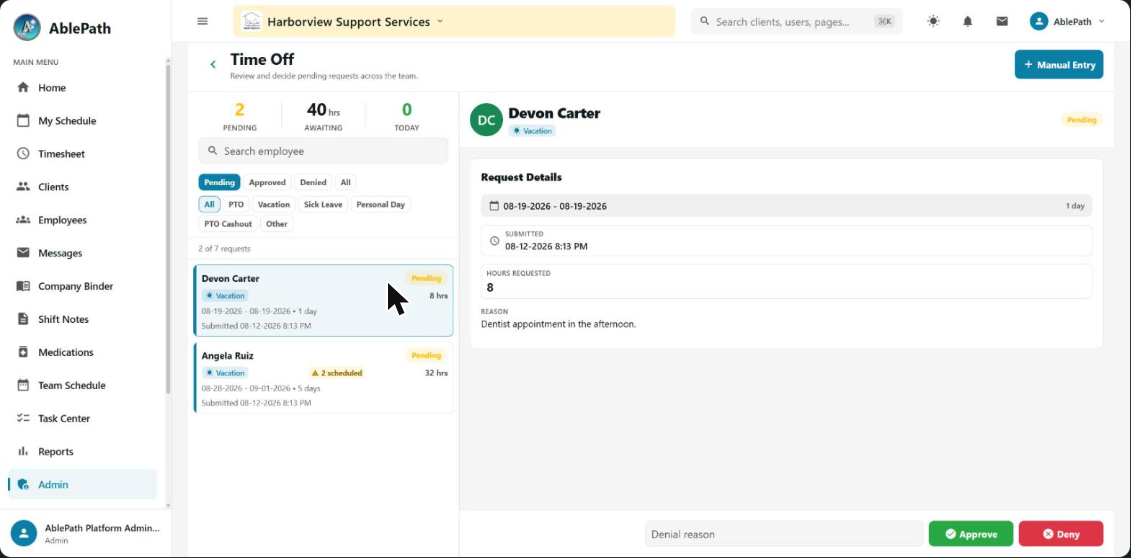
- Filter by status (Pending/Approved/Denied/All) and type.
- Tap a request — if it overlaps a scheduled shift for that employee, a conflict warning is computed and shown before you decide.
- Approve or Deny (denying opens a reason field).
- A decision can be reverted back to Pending later, or the request deleted outright. Managers can also log a manual entry directly for an employee, bypassing self-request.
GotchaThe conflict check skips "PTO Cashout" requests (they don't block a schedule slot) — a Cashout request will never show a false conflict warning.
View the Team Schedule
WhoManager and above (editing); broader view accessWhereAdmin tab → Scheduling → Team Schedule
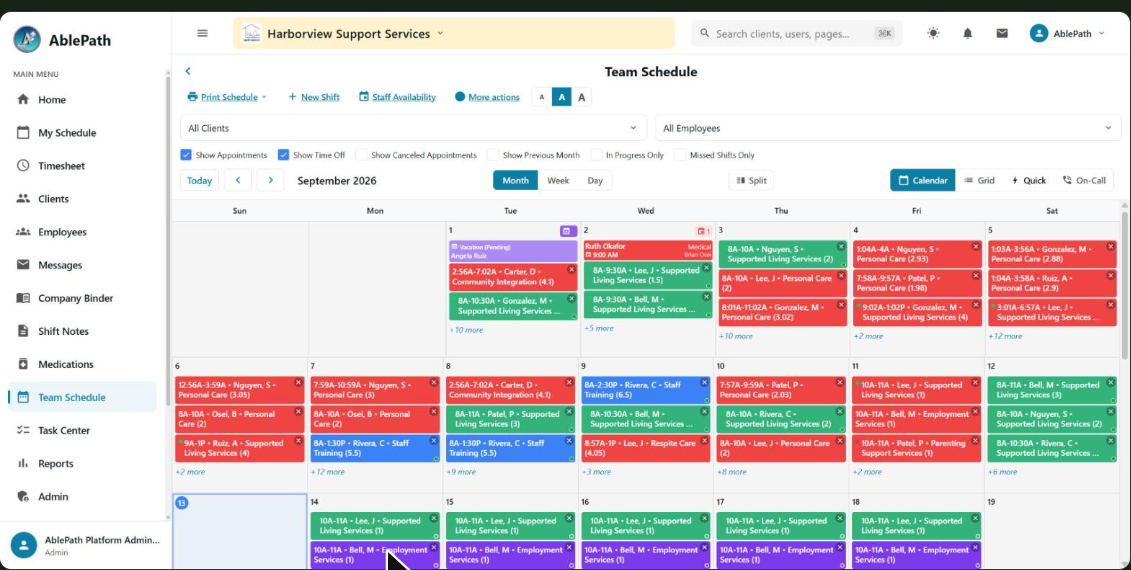
- Switch between five view types: Calendar, Grid, Quick, On-Call, and Coverage.
- Toggle split-view and card text size — these preferences are remembered on the device.
- Overnight shifts are visually segmented across the day boundary so they show correctly on both days they span.
GotchaIf someone says "the schedule doesn't look right," ask which view type they're in first — Coverage and Grid render fundamentally differently from the Calendar view.
Browse All Schedules
WhoManager and aboveWhereAdmin tab → Scheduling → All Schedules
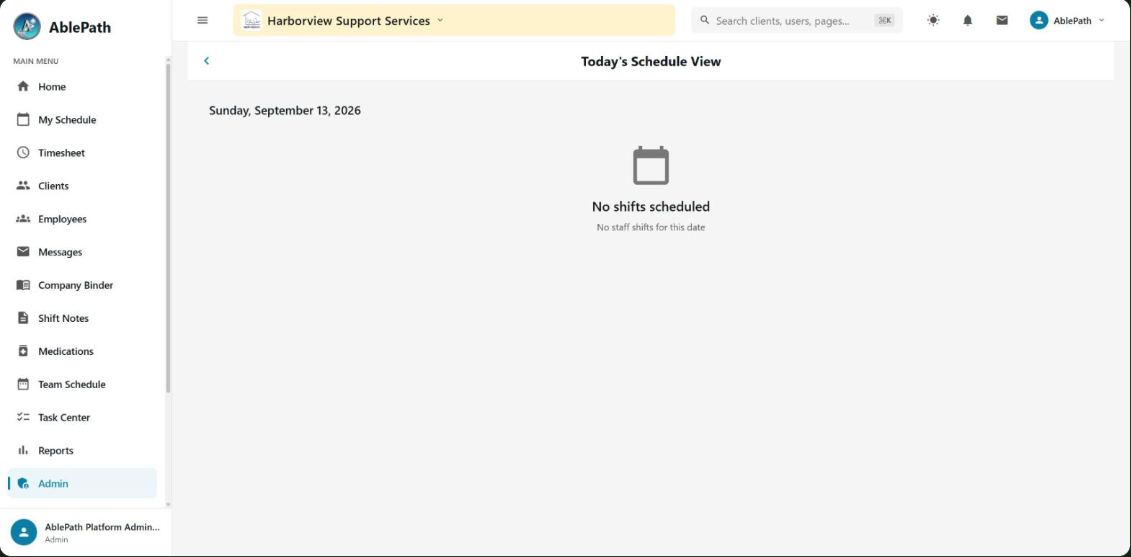
- Browse a flat list of shift cards — time range, status, assigned staff (or "Open Shift"/"Unassigned"), client, location, and service type.
GotchaThis is a simpler, read-only list — reach for it when you just need to scan everything scheduled, and use Team Schedule when you need the interactive calendar.
Create a schedule template
WhoManager and aboveWhereAdmin tab → Scheduling → Schedule Templates
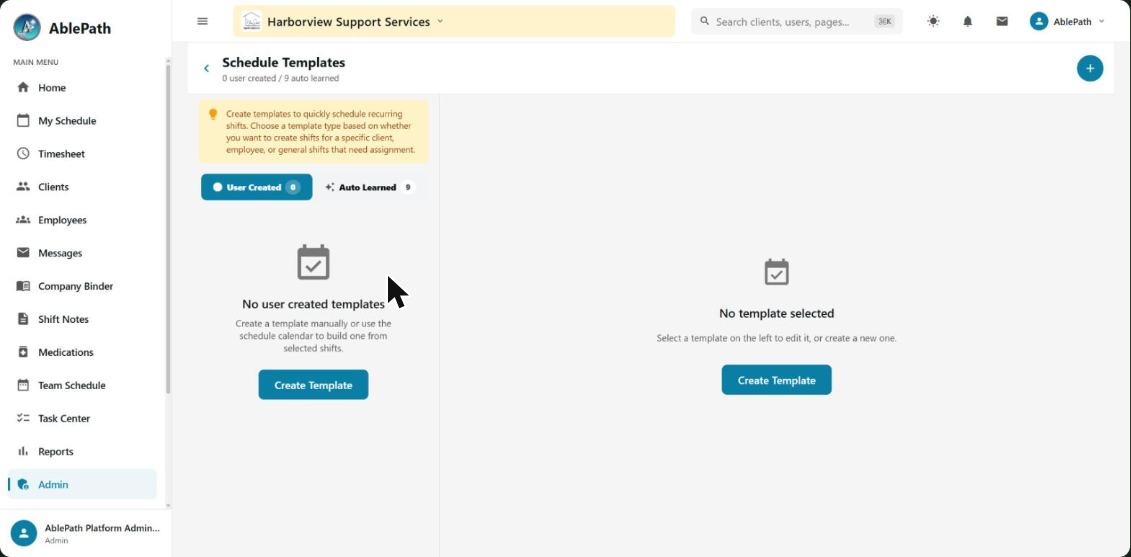
- Choose a template type: client, employee, general, or coverage, plus a recurrence pattern and default service type.
- Add shift definitions with start/end times — overnight shifts are auto-detected when the end time is before the start time.
- Service type choices include SLS, IHSS, ILS, Day Program, Shadow Shift, Appointment, and several internal meeting types.
GotchaThe list distinguishes templates you built from "auto-learned" templates the system suggests based on actual scheduling history — the latter aren't something you created, just a pattern it noticed.
Record and manage a call-out
WhoManager and aboveWhereAdmin tab → Scheduling → Manage Call-Outs
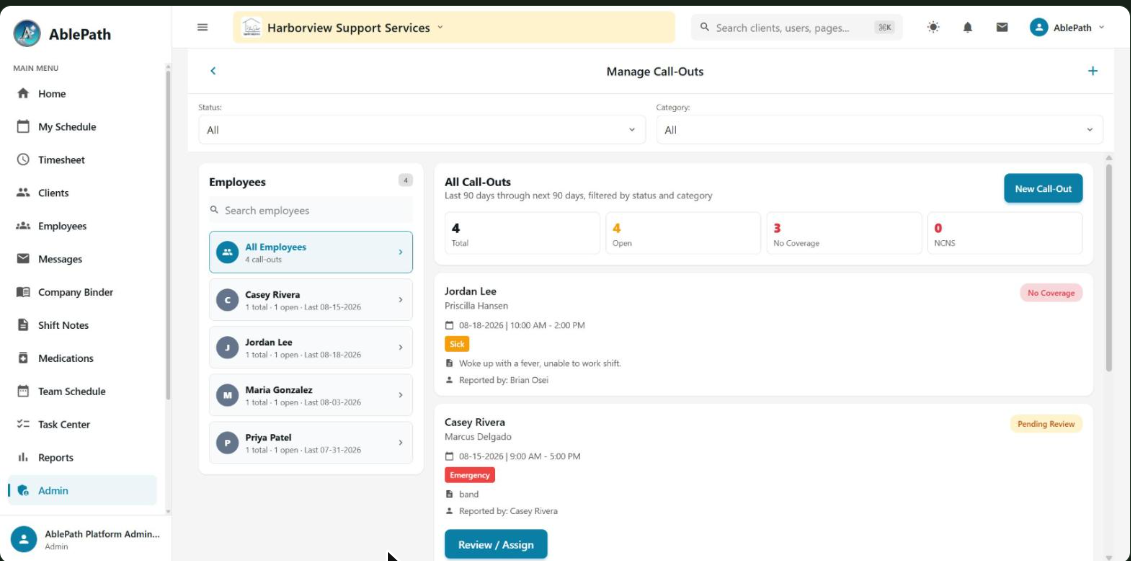
- Filter by status and category (Sick, Emergency, Personal, No Call/No Show).
- To record one: pick the shift and the employee who called out, choose a category, submit — this immediately shows eligible replacement staff.
- Assign a replacement, or Acknowledge the call-out without assigning anyone yet, which opens the shift up as an Open Shift for self-claiming.
GotchaA call-out that's acknowledged without a replacement becomes visible under Open Shifts — the two screens are two views into overlapping data, not fully separate systems.
Create a calendar event
WhoAll staff (view) · Manager and above (create/edit/notify)WhereAdmin tab → Scheduling → Calendar Events
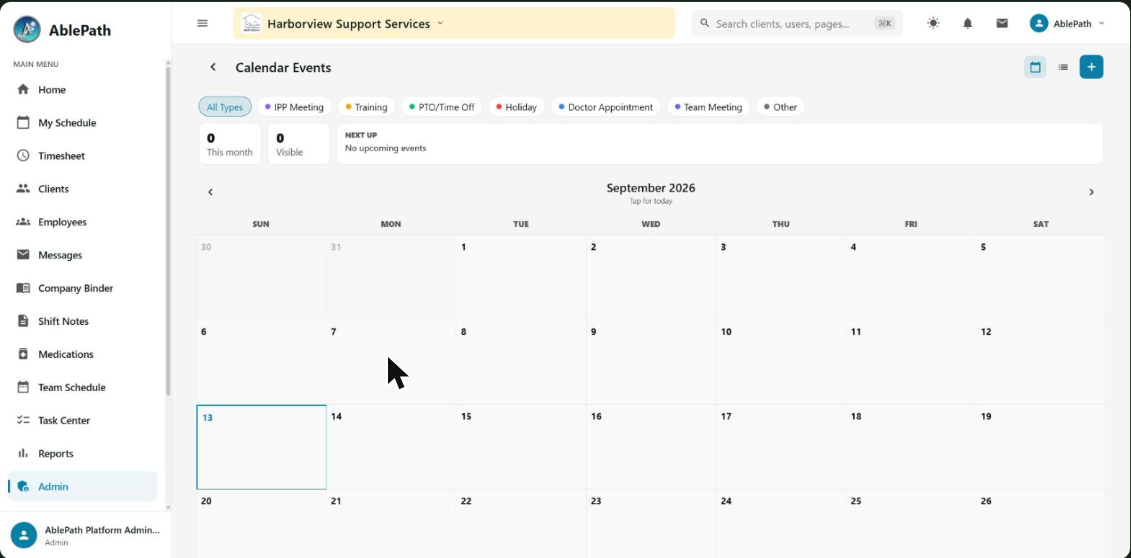
- Browse a month calendar with colored event chips per day, filterable by event type.
- Create an event for IPP meetings, training, PTO, or holidays — set a date range (or single day), time or "All Day," and details.
- Notify staff about an event — either the one person it's assigned to, or all active staff, with a confirmation first.
GotchaRegular staff only see events explicitly assigned to them, not the full org calendar — if a DSP says they don't see an all-staff training, check that it was actually assigned to them, not just created generally.
Track on-call coverage
WhoRequires the schedule.edit permissionWhereAdmin tab → Scheduling → On-Call Management
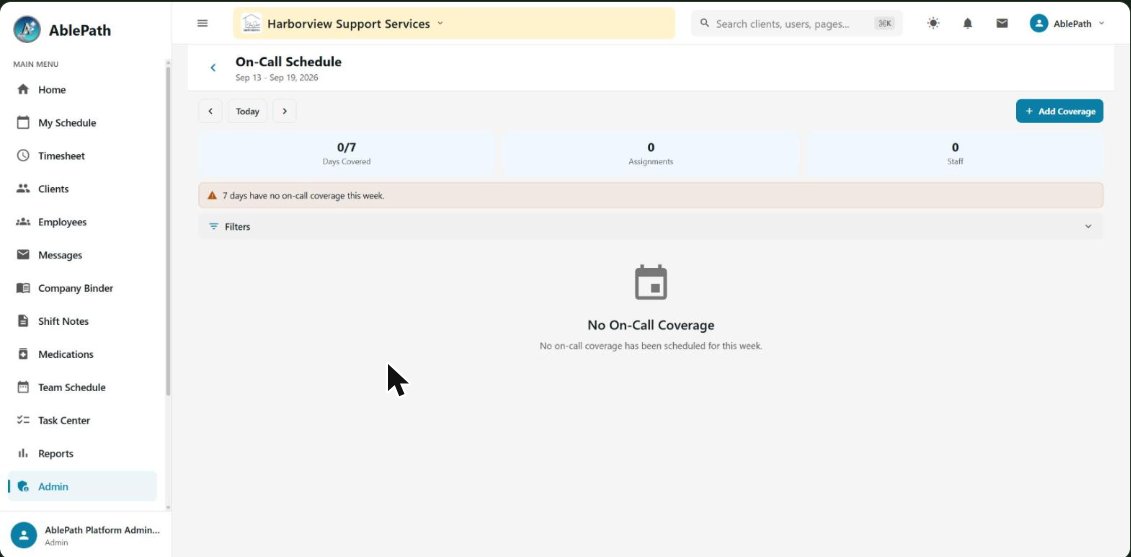
- View a weekly grid of on-call coverage per day.
- Create an entry — admins pick who's on call; a non-admin creating their own entry skips that field. Set start/end date and time, plus optional notes.
- Edit or delete an entry (delete requires confirming the entry's start date).
GotchaThe end date/time must be strictly after the start, and an admin creating a new entry must select a person — both are blocked with a validation error rather than silently accepted.
Configure scheduling rules and shift categories
WhoAdmin, ManagerWhereAdmin tab → System Config → Settings Hub → Scheduling tab
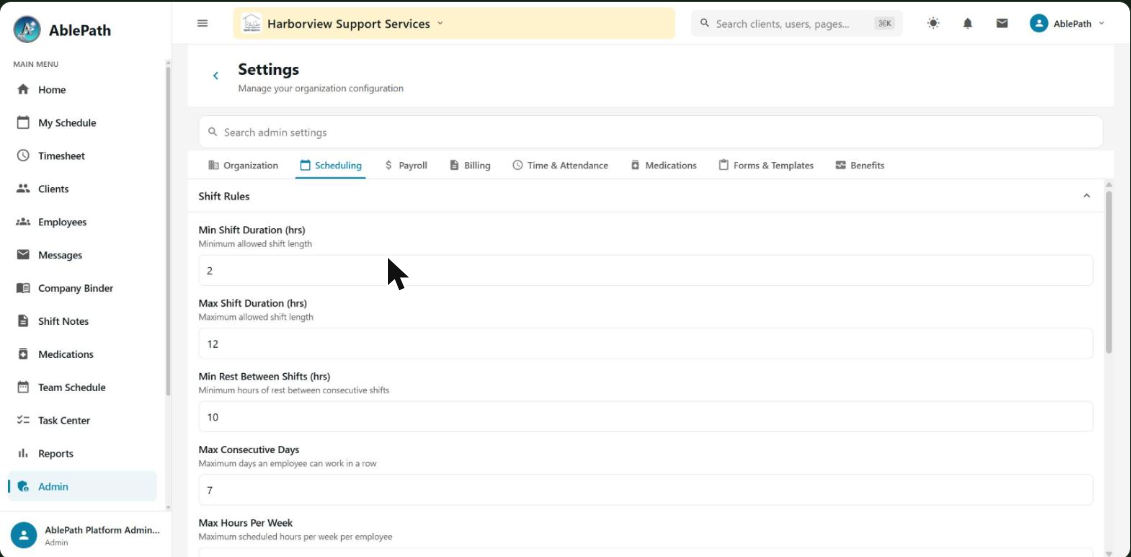
- Shift Rules: min/max shift duration, minimum rest between shifts, max consecutive days, max hours/week, gap between consecutive shifts, advance-notice hours, and max advance-scheduling days.
- Shift Permissions: require manager approval (with an auto-approve-within-hours window), allow overlapping shifts, allow same-client shifts, require a certification match, and supervisor filtering.
- Shift Categories: add, edit, or remove the categories shifts can be tagged with.
GotchaGeofencing also lives on this same Scheduling tab, but it's substantial enough to get its own walkthrough — see "Configure geofencing rules" in the Time & EVV guide.