The paperwork that keeps a license current — medications, incident reports, behavior plans, and training — done at the point of care.
Role ladderFamily (0)Caregiver (1)DSP / Home Supervisor (2)Manager (3)Director (4)Admin (5)
Using this guide
Start with Who and Where, then follow the numbered steps. On desktop, Home, Clients, Timesheet and other destinations may appear in the left sidebar instead of a bottom tab. The Admin menu groups additional tools.
Available actions depend on your role, permissions, enabled programs and organization settings. If a tool is missing, ask your administrator to check access. Expand a Settings Hub section to reveal its controls, use that section’s Save button, and wait for confirmation.
Screenshots show the demo web app. Some show a starting screen or an empty list rather than a completed task; read the caption. Click an image to enlarge it. Use Ctrl+F (Command+F on Mac) to find a task, label or keyword.
Log a scheduled medication dose
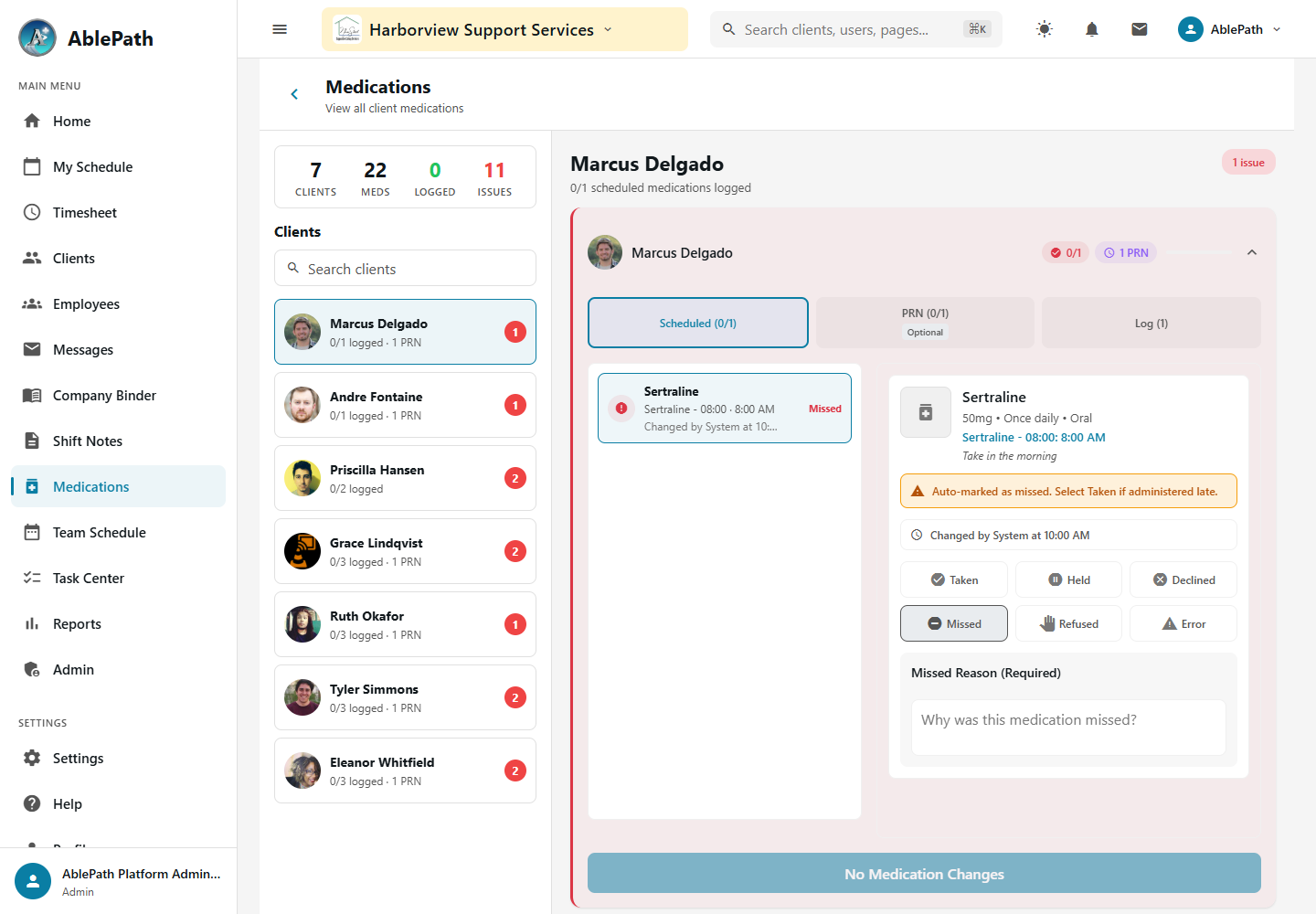
Medication detail in the admin demo view; the clocked-in staff workflow may show different controls. Click to enlarge.
WhoAny staff clocked in on the shiftWhereHome tab → while clocked in → Medications section
While clocked in for a client, the Medications section lists their scheduled doses for the shift window.
Tap a medication and choose a status: Taken, Held, Declined, Missed, Refused, Error, Natural Support, or Day Program.
For Refused: record the refusal reason, the client's behavior, and the action staff took, plus whether an alternate was offered and accepted.
For Error: record the error type, severity (Minor/Moderate/Severe/Critical), and the corrective action taken.
GotchaA dose left unlogged past its window can be automatically marked "missed" by the system. Held doses never count as administered. Some medications also require a witness to log — controlled substances typically need a second staff member's ID on the record.
Log a PRN (as-needed) dose
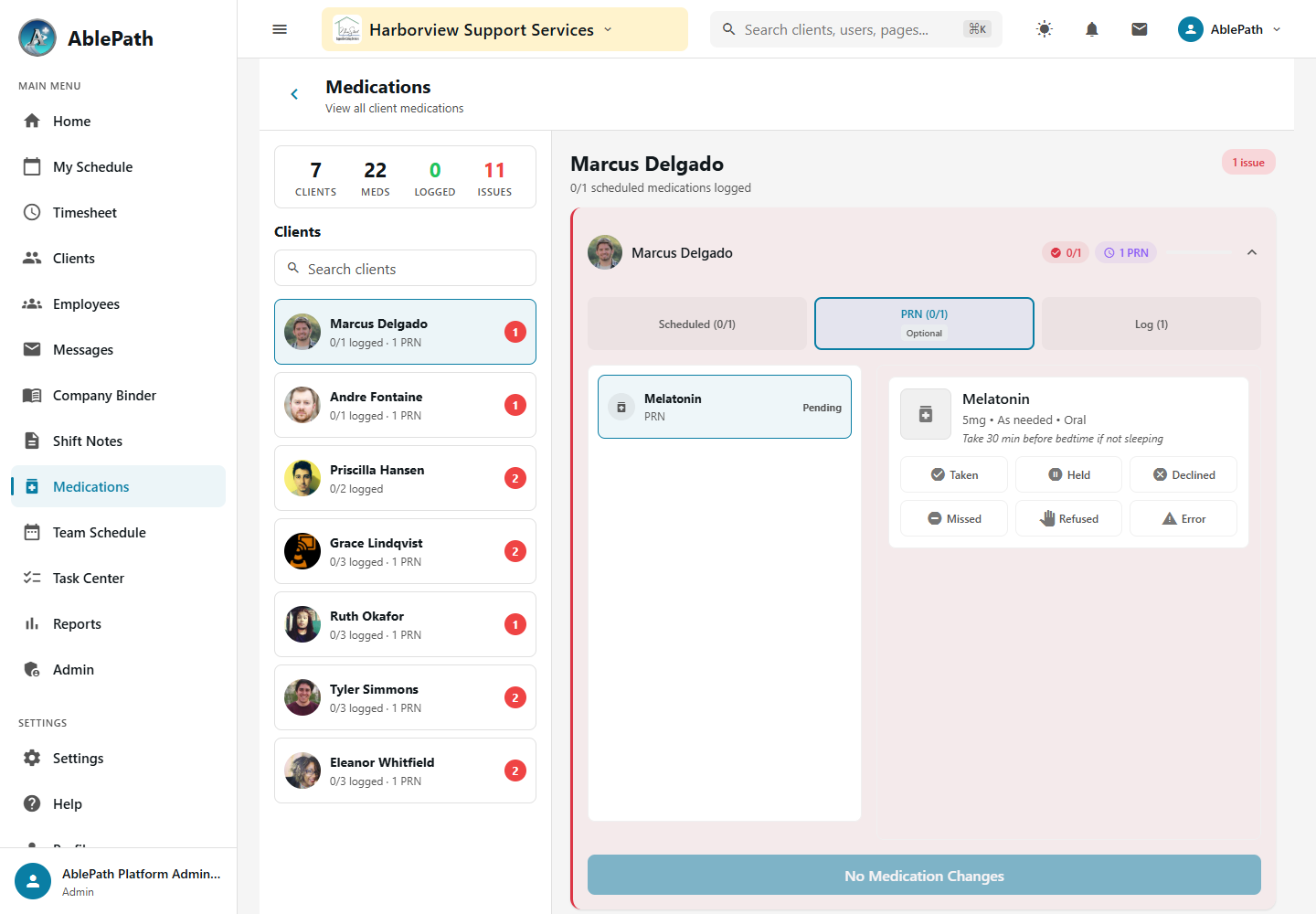
PRN medication detail in the admin demo view; the reason and effectiveness follow-up are not shown. Click to enlarge.
WhoAny staff clocked in on the shiftWhereHome tab → while clocked in → Medications section, PRN group
PRN medications appear in their own group, separate from the fixed schedule.
Tap the medication and enter the reason it's being given now.
After administering, log the outcome and rate its effectiveness (1–5).
GotchaPRN medications enforce a minimum interval between doses. If you try to log a second dose before that window elapses, the app blocks it.
Review medication coverage gaps
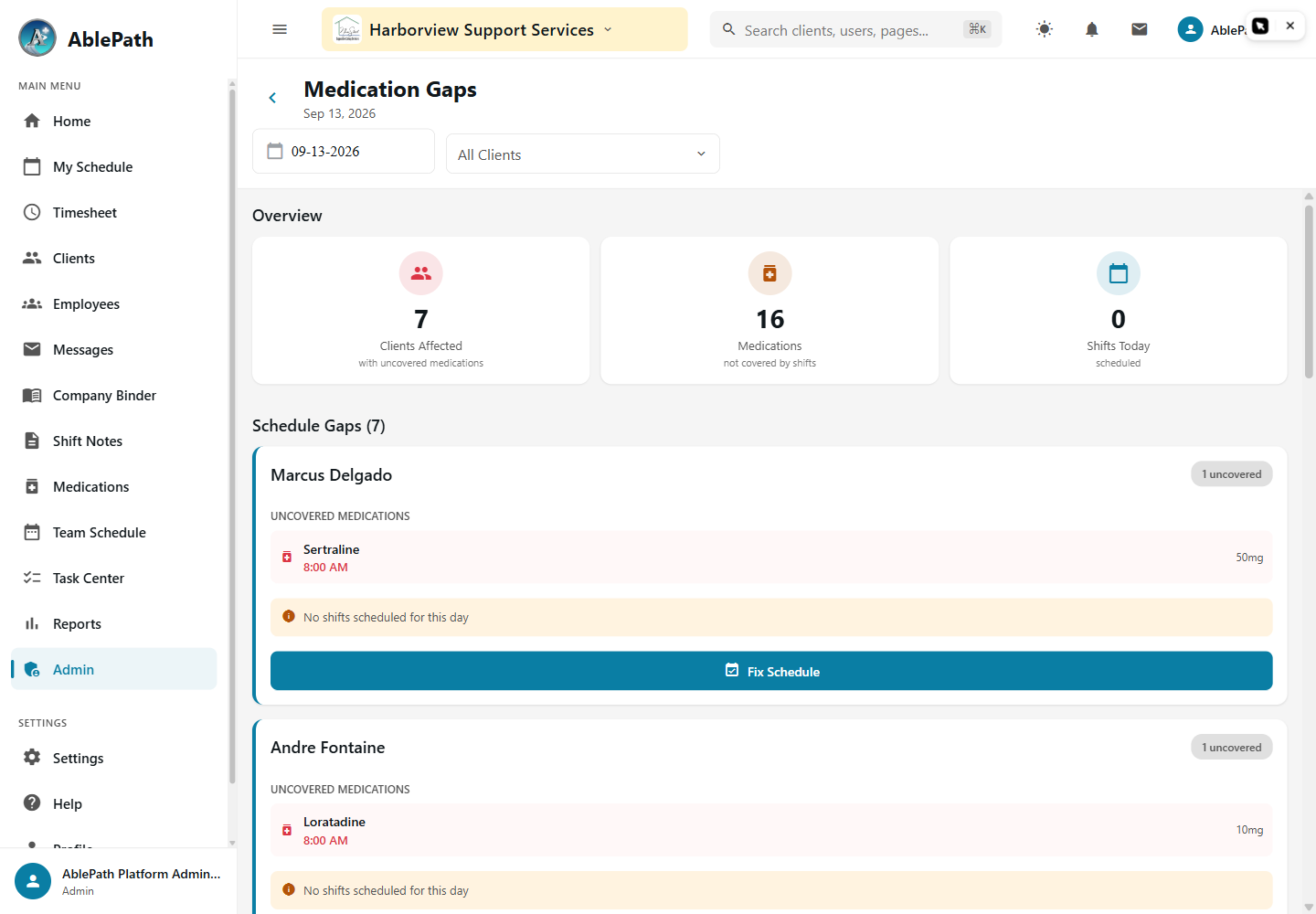
Screen reference: Review medication coverage gaps. Click to enlarge.
WhoManager and aboveWhereAdmin tab → Medication Management → Medication Gaps
The gap detector automatically flags any client whose scheduled medication time falls outside any assigned shift for that day — meaning no staff will be there to give it.
Each flagged item shows the client, the medication and time, and nearby shifts if any exist.
Fix it by adjusting the schedule so a shift covers that time.
GotchaThis is a scheduling gap — no one will be present — not a missed dose, where staff were present but didn't log it. Don't confuse the two when training staff; fixing a gap means changing the schedule, not chasing a dose.
File a Special Incident Report (SIR)
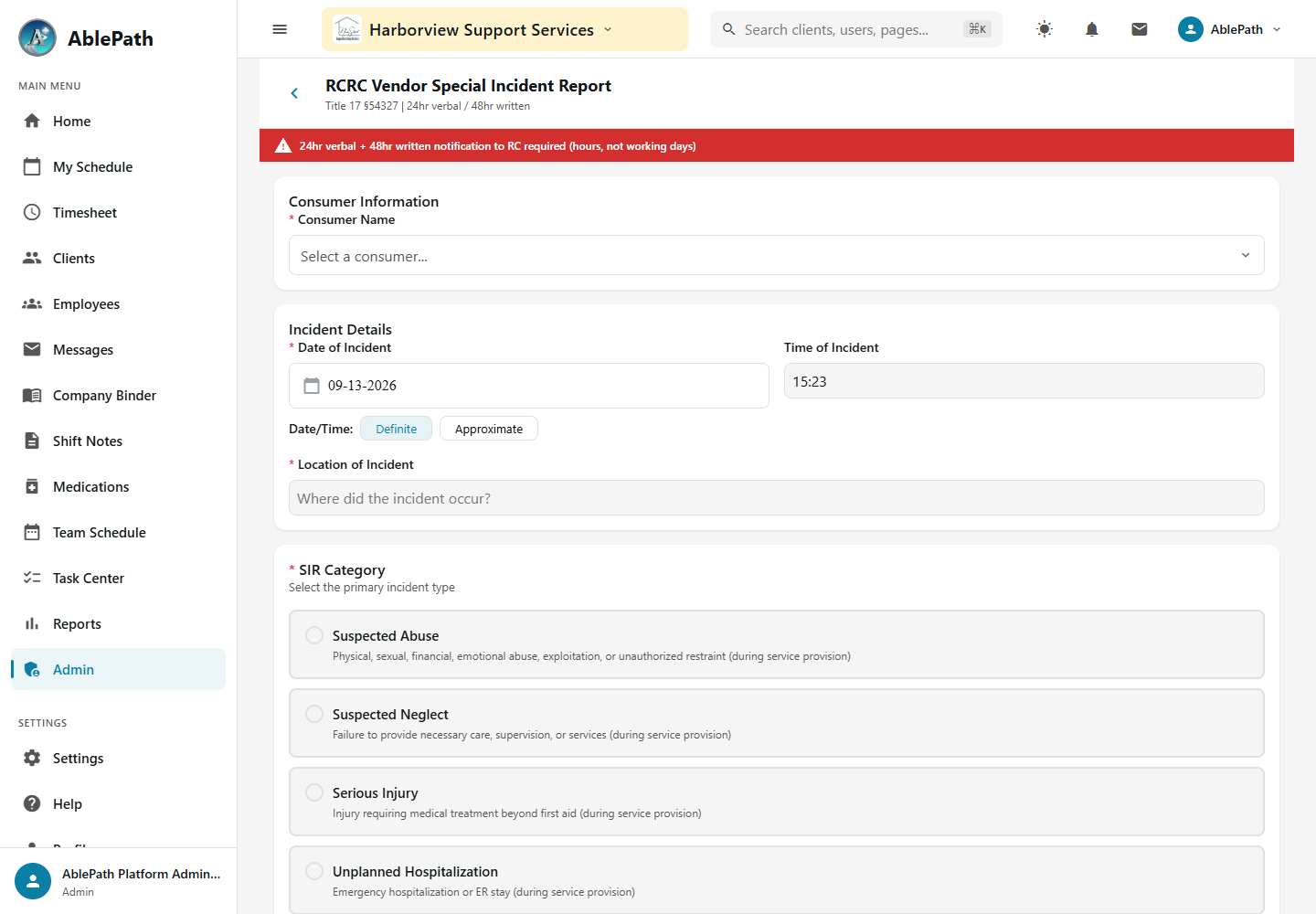
Screen reference: File a Special Incident Report (SIR). Click to enlarge.
WhoAny staff present (file) · Manager and above (dashboard/queue)WhereAdmin tab → Compliance & Reporting → SIR Reports → New
Fill in the incident category and severity, description, affected body parts and injury type if applicable, witnesses, and immediate action taken.
The record tracks the Regional Center it's tied to (vendor number, name, address, phone) and a live countdown to its reporting deadline.
Once complete, the system can generate an official Bodily Injury Report PDF carrying the organization's branding.
GotchaSIR is a distinct, regulatory workflow with a hard deadline — separate from the general internal Incidents module, which handles root-cause and corrective-action tracking with no regulatory clock. Don't use one form for the other's purpose.
Log a Behavior Support Plan (BSP) ABC entry
Screen reference: Log a Behavior Support Plan (BSP) ABC entry. Click to enlarge.
WhoStaff working with the client, against an active BSPWhereAdmin tab → Client Services → Client Management → a client → BSP tab → ABC Log
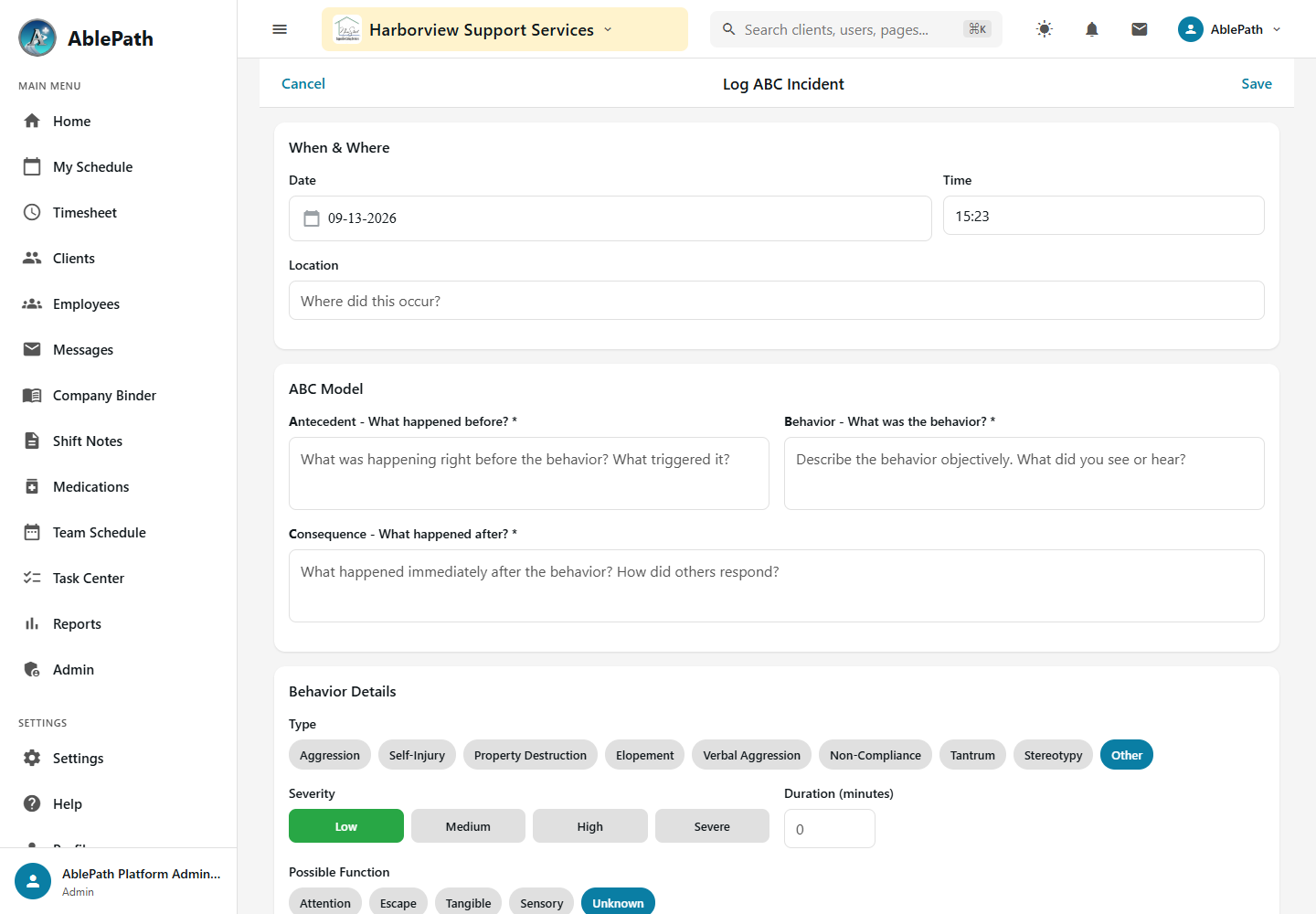
Select which of the client's active BSPs the entry belongs to, and set date, time, and location.
Fill the three ABC fields — Antecedent (what happened before), Behavior (what occurred), Consequence (what happened after).
Classify the behavior type (Aggression, Self-Injury, Property Destruction, Elopement, Verbal Aggression, Non-Compliance, Tantrum, Stereotypy, Other), severity, duration, and its likely function (Attention, Escape, Tangible, Sensory, Unknown).
Record the intervention used, how effective it was, the immediate outcome, and whether follow-up is needed.
GotchaA BSP has to exist and be active before you can log against it — check the plan's guideline text and crisis-level intervention steps (Level 1–3, Emergency) before intervening, not just after, since that's where the plan lives.
Build a custom form
Screen reference: Build a custom form. Click to enlarge.
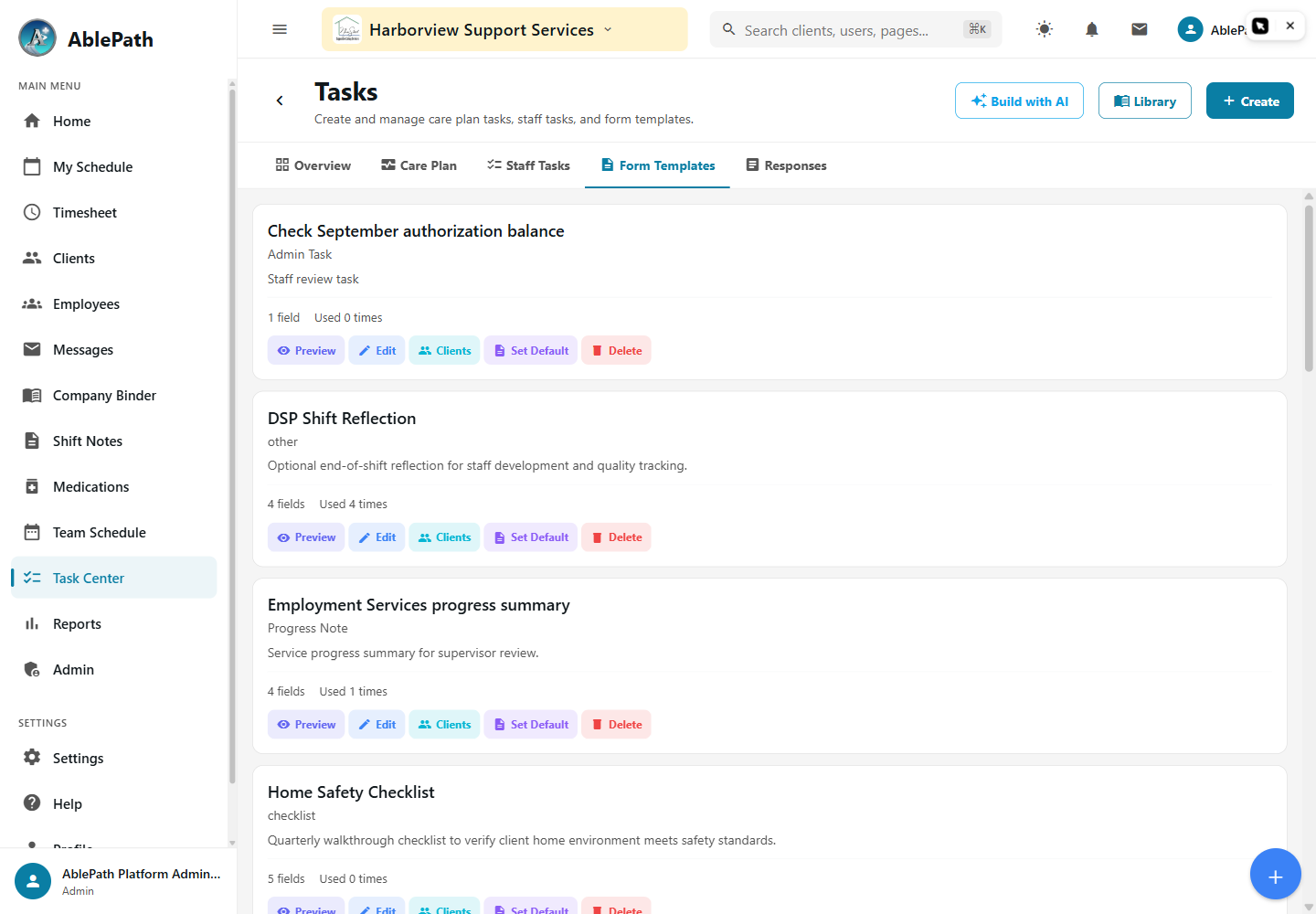
WhoAdminWhereAdmin tab → Forms & Documents → Task Center → Form Templates
Name the form, then add fields: yes/no, checkbox, radio, select, multiselect, rating, text, section header, or a service-note component.
For any choice-type field, add its answer options.
Optionally turn on Track Outcome for a field to chart it over time — choose which specific answers "count" as a positive outcome.
GotchaThe builder blocks saving if the form has no name or fields, any field is missing a label, a choice field has no options, or outcome tracking is on without a marked "counts" answer.
Complete an assigned training course
Screen reference: Complete an assigned training course. Click to enlarge.
WhoAll staff (complete) · Manager and above (assign)WhereHome tab → Training card → View All Training → course → lesson
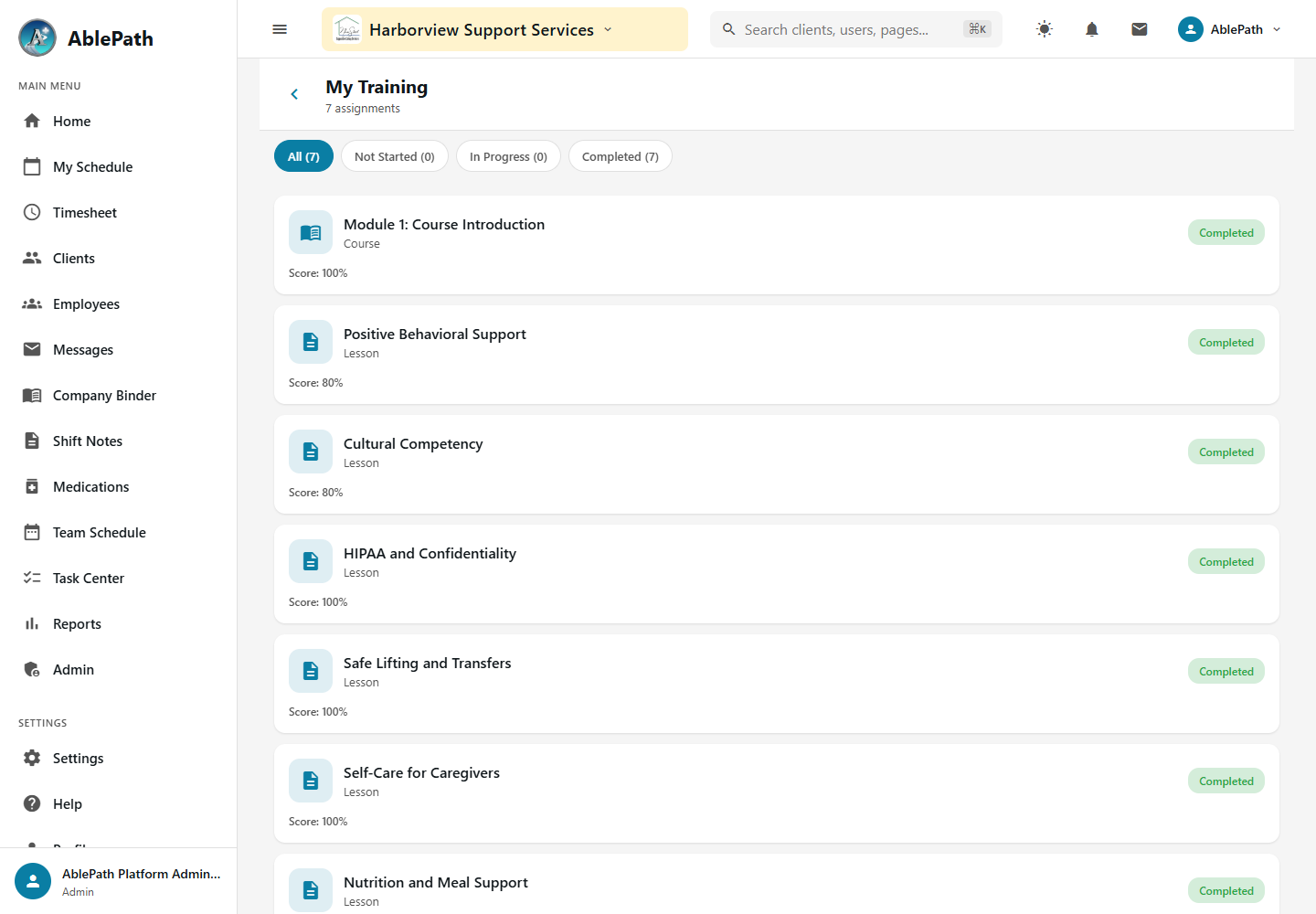
Open an assigned course from the Home tab's Training card, or tap "View All Training" to see everything assigned.
Work through its lessons in the order laid out in the training path.
Complete each lesson's content or quiz to mark it done.
GotchaTraining (curriculum) and Staff Compliance (certification/TB test/CPR expirations) are two separate modules — assigning a course doesn't log a certification, and logging a certification doesn't assign a course.
Write a shift note
Screen reference: Write a shift note. Click to enlarge.
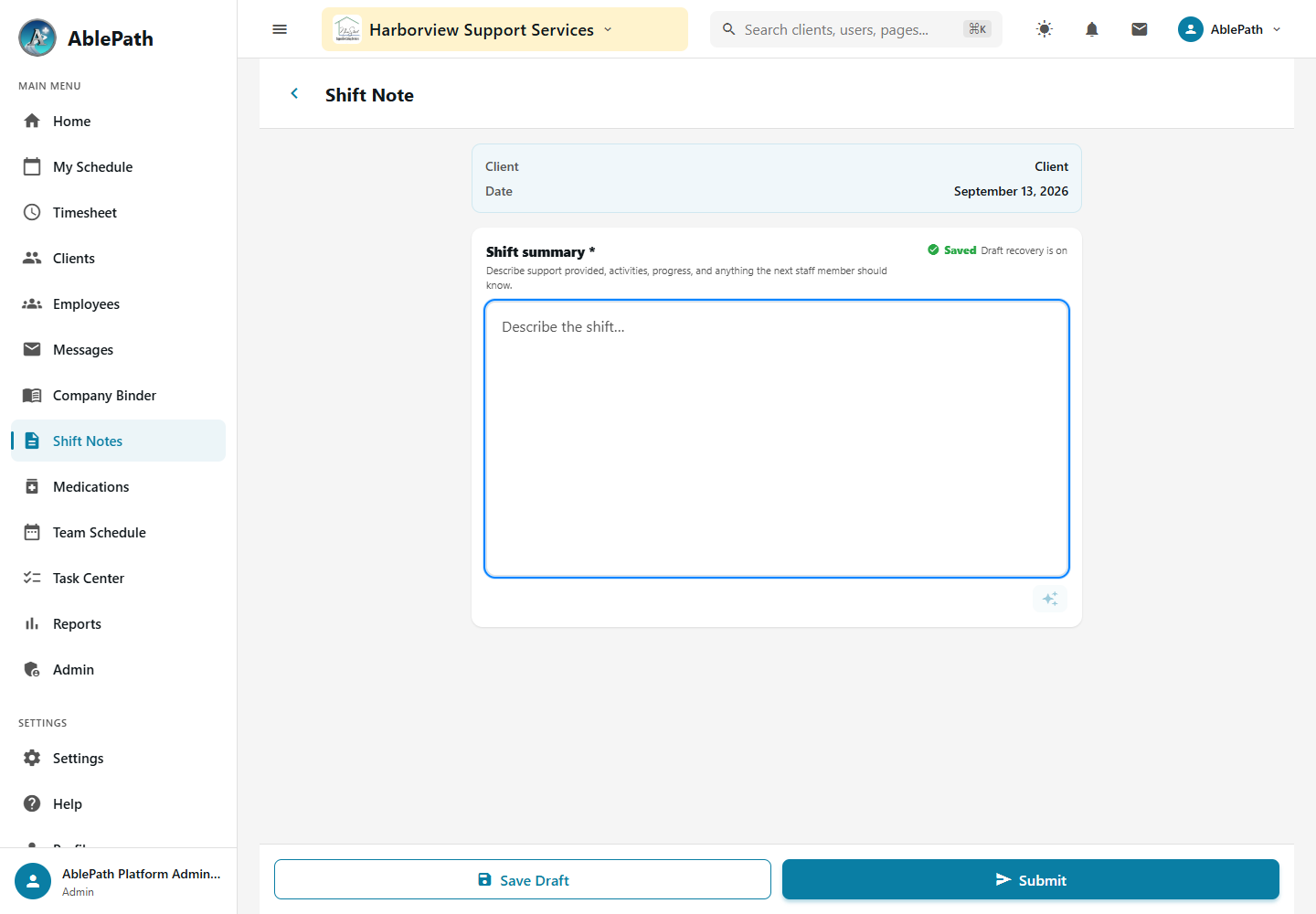
WhoStaff who worked the shiftWhereSchedule tab → tap a shift → Add Shift Note
Depending on the organization, this is either a structured legacy note (activities, goals addressed, behavioral observations, vitals, meals, medications, incidents) or a completed custom form.
Fill in the fields, sign it, and submit — status moves from draft to submitted.
GotchaSupervisors can see which past shifts are still missing a note at a glance — don't assume a gap will go unnoticed. If your organization requires a note before clock-out, you'll be blocked from clocking out until it's complete.
More documentation & training
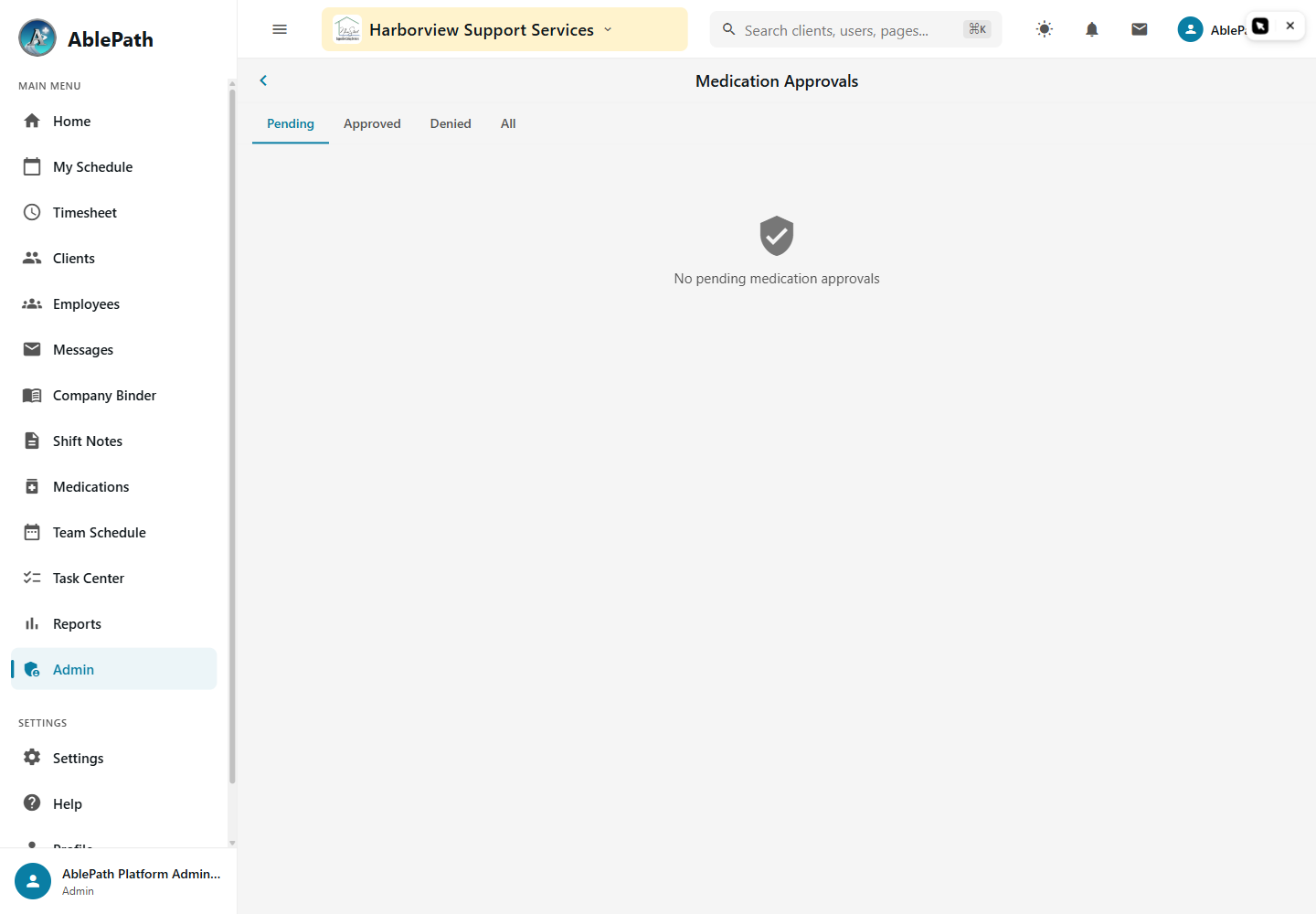
Review medication verification requests
Screen reference: Review medication verification requests. Click to enlarge.
WhoAnyone with the clients.medical permissionWhereAdmin tab → Medication Management → Medication Approvals
Filter by tab: Pending, Approved, Denied, or All. An escalated request shows a colored badge — amber for level 1, red for level 2+.
Tap a request to open its review modal, including the pill-verification photo.
Approve to log it as administered, or pick a required denial reason plus optional notes to Deny.
GotchaRequests update live over a socket connection rather than polling, so a request someone else just approved should disappear from your queue almost immediately. Denying requires picking a reason from the list — there's no free-text-only denial.
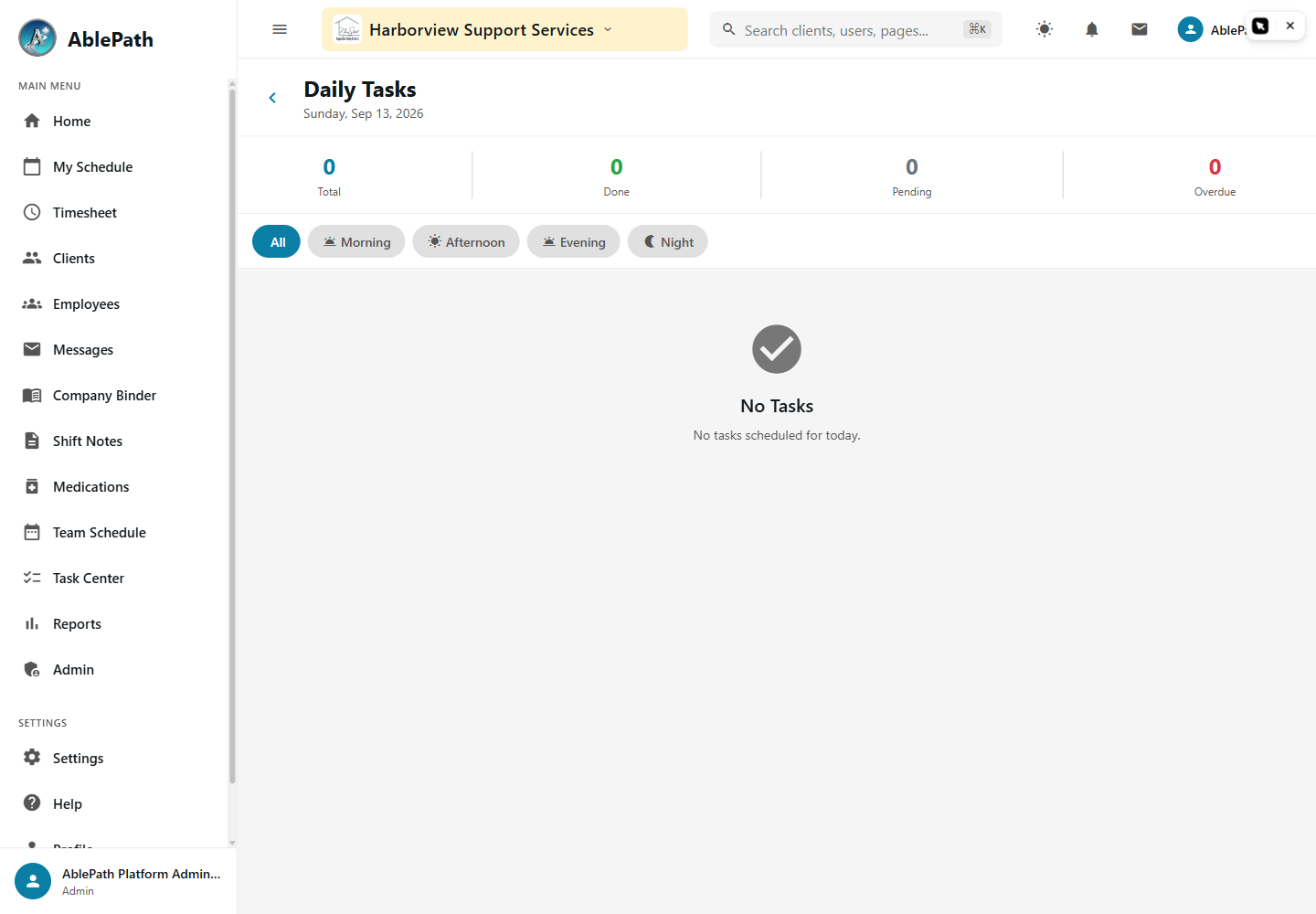
Complete or monitor care plan tasks
Screen reference: Complete or monitor care plan tasks. Click to enlarge.
WhoManager and aboveWhereAdmin tab → Client Services → Care Plan Tasks
Filter tasks by time of day (Morning/Afternoon/Evening/Night) for a selected date.
Tap a pending task and choose Complete or Not Completed, then enter completion notes.
Tap an already-resolved task to Unmark it back to pending, with a confirmation.
GotchaNotes are required when marking a task "Not Completed" but optional for "Complete." There's no dedicated Home-tab or shift-action-sheet entry for this — a line DSP checking off tasks during a live shift has to use this same admin-menu path today.
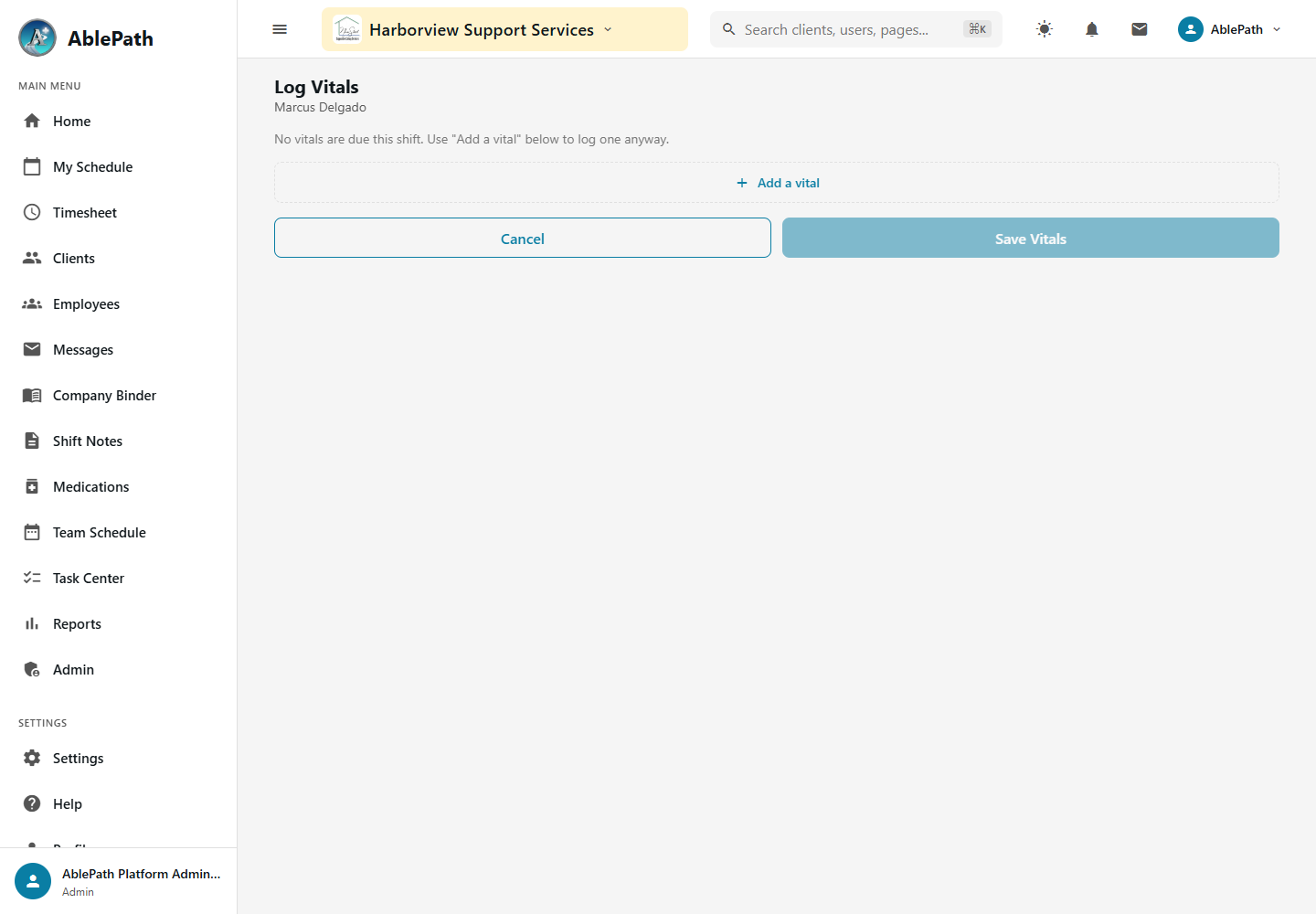
Log a client's vitals
Screen reference: Log a client's vitals. Click to enlarge.
WhoStaff on an active shift for that clientWhereLaunched from an active shift, not a standalone menu item
The screen loads whichever vitals are currently due for the client, per their vitals schedule — grouped rows for related readings (e.g. blood pressure combines systolic and diastolic into one row).
Fill in the value(s) for each due row and submit.
GotchaScheduled vitals appear when due. If none are due, use Add a vital to record an additional reading, then Save Vitals. Confirm that the saved readings are correct.
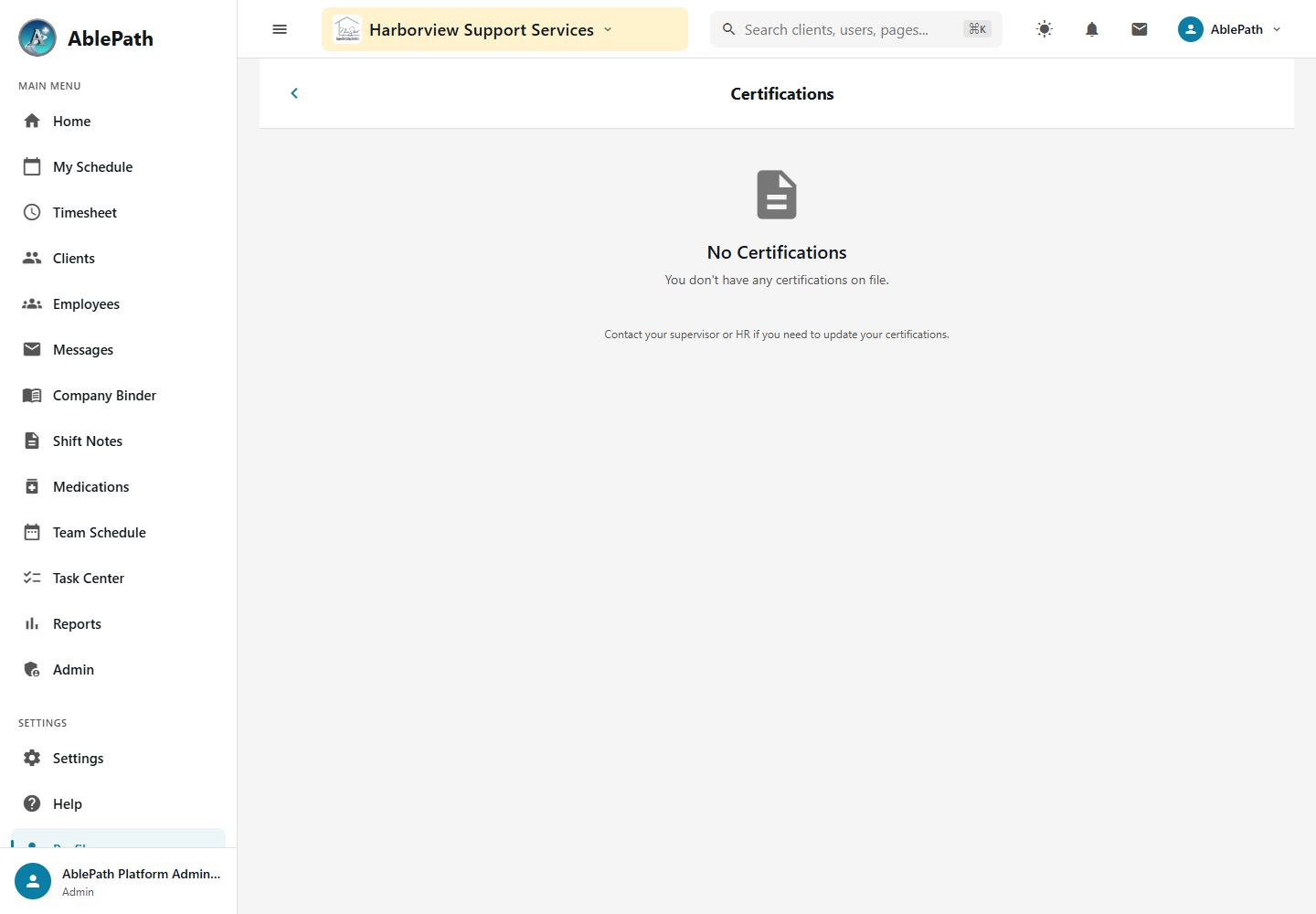
View your own certifications
Screen reference: View your own certifications. Click to enlarge.
WhoAny staff member, own record onlyWhereProfile tab → Certifications
Lists your certification documents, each showing the certifying body, issue date, and expiration date.
GotchaThis screen is read-only — it displays documents already on file, uploaded elsewhere (e.g. by an admin or through the general Documents flow), rather than offering its own upload button.
View submitted custom form responses
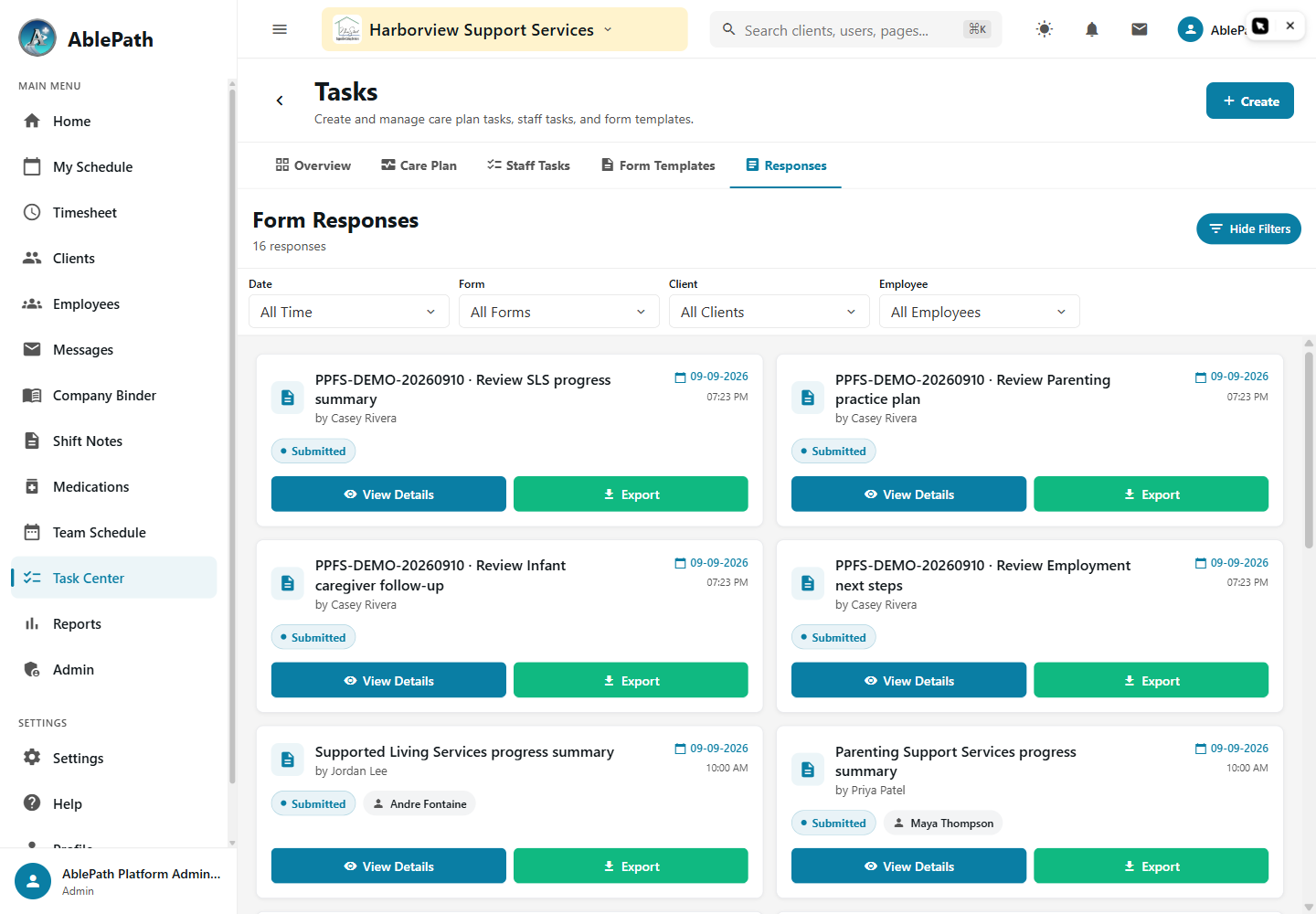
Screen reference: View submitted custom form responses. Click to enlarge.
WhoManager and aboveWhereAdmin tab → Forms & Documents → Task Center → Responses tab
Open the Task Center hub and switch to the Responses tab.
Each submission shows the template name and who submitted it.
GotchaThis is a tab on the same hub used to build forms (Form Templates) — there's no separate "Form Responses" tile in the menu.
Author training lessons and courses
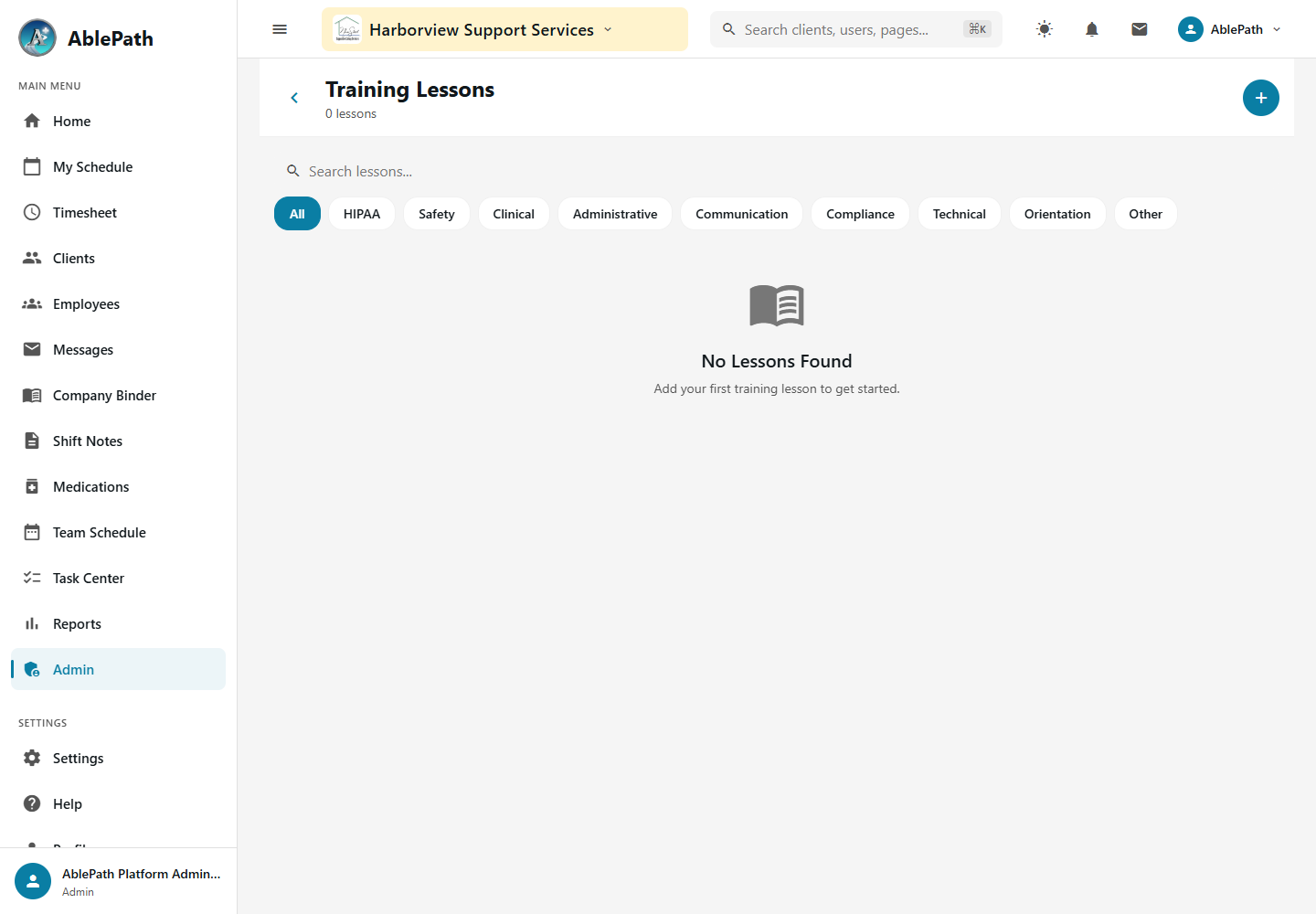
Empty Training Lessons list; lesson creation, course creation and attaching lessons are not shown. Click to enlarge.
WhoAdmin onlyWhereAdmin tab → Training → Training Lessons / Training Courses
Lessons: pick a category (HIPAA, Safety, Clinical, Administrative, Communication, Compliance, Technical, Orientation, Other), give it a title, and optionally add a quiz — multiple-choice questions need at least 2 options plus a correct answer.
Courses: give it a title, description, category, and difficulty; toggle Sequential (lessons must be completed in order) and Certificate on Completion.
Open a saved course to attach existing lessons via a picker.
GotchaLessons and courses are managed on two separate screens — a lesson has to exist first before you can attach it to a course. True/false questions skip the "at least 2 options" check that multiple-choice questions enforce.
Add a quick service note to a shift
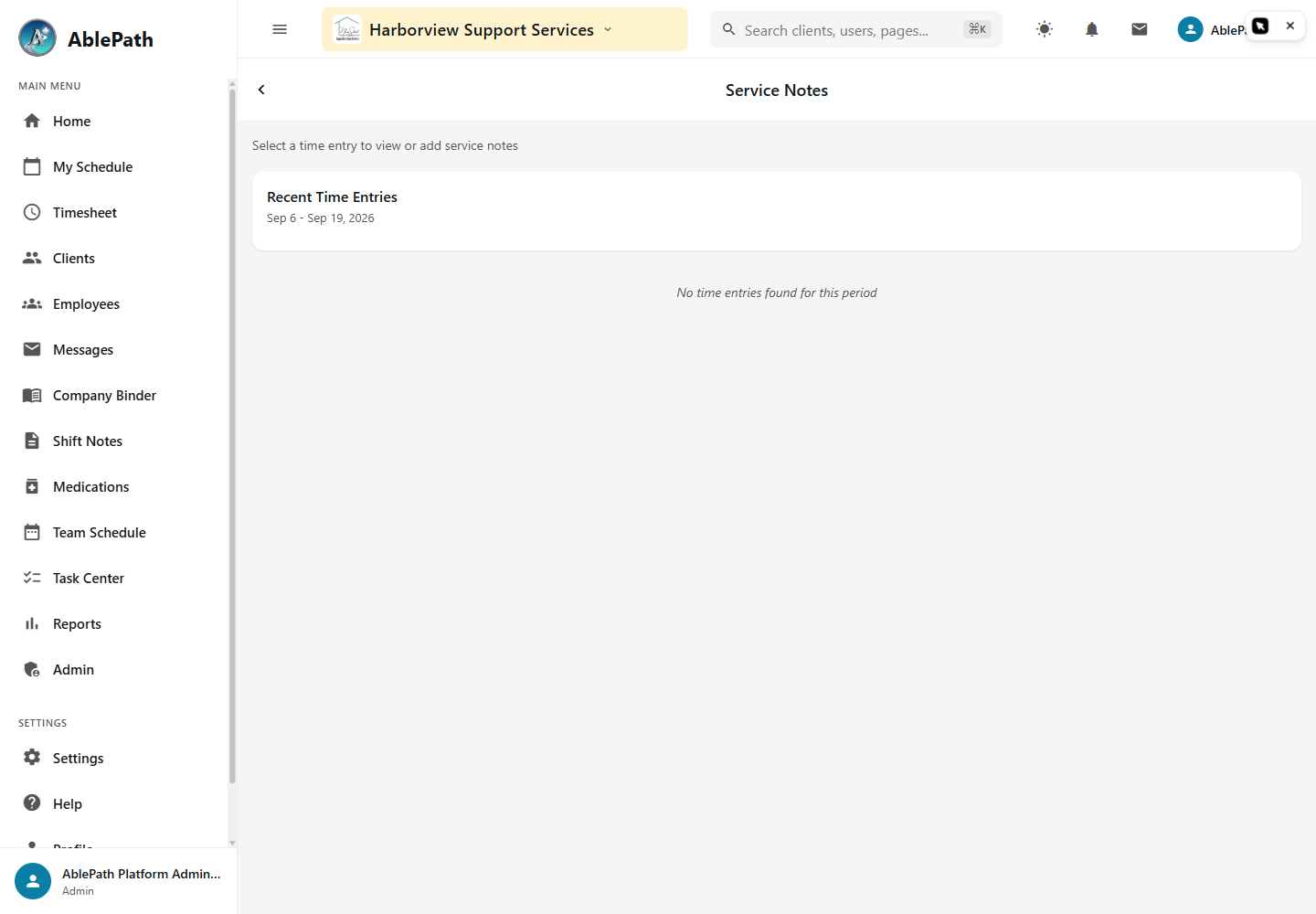
Service Notes starting screen with no entries in the selected period. Click to enlarge.
WhoStaff / ManagerWhereAdmin tab → Client Services → Service Notes
Pick a time entry/shift.
Add a short free-text note against it.
GotchaThis is a deliberately lighter-weight alternative to full Shift Notes — the two are separate data models, and deleting one has no effect on the other. Don't use Service Notes as a substitute for a required shift note.
Publish a policy or training document
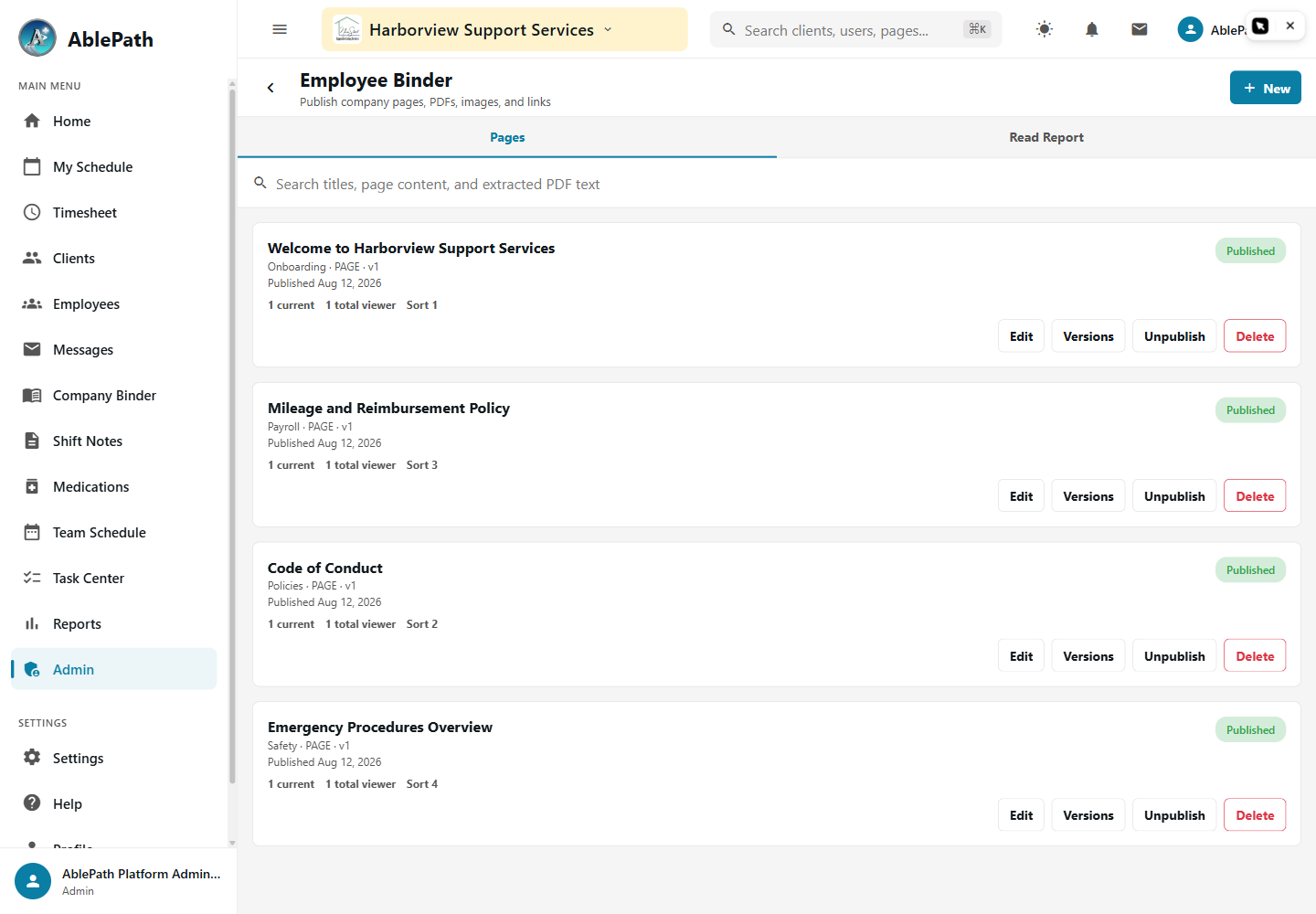
Screen reference: Publish a policy or training document. Click to enlarge.
WhoManager and aboveWhereAdmin tab → Forms & Documents → Employee Binder
Switch between the Pages tab (published content) and the Report tab (who has acknowledged what).
Add a page: choose a category (Policies, Training, HR, Safety, General) and a content type, give it a title, and either upload a file or write content directly — optionally attach a card image.
Set an acknowledgment due date if staff need to confirm they've read it, then publish.
Use Versions to see prior revisions of a page.
GotchaThis is company-wide reading material — not the same as a client's Documents tab or a custom form. When staff ask where a policy lives, this is the answer.
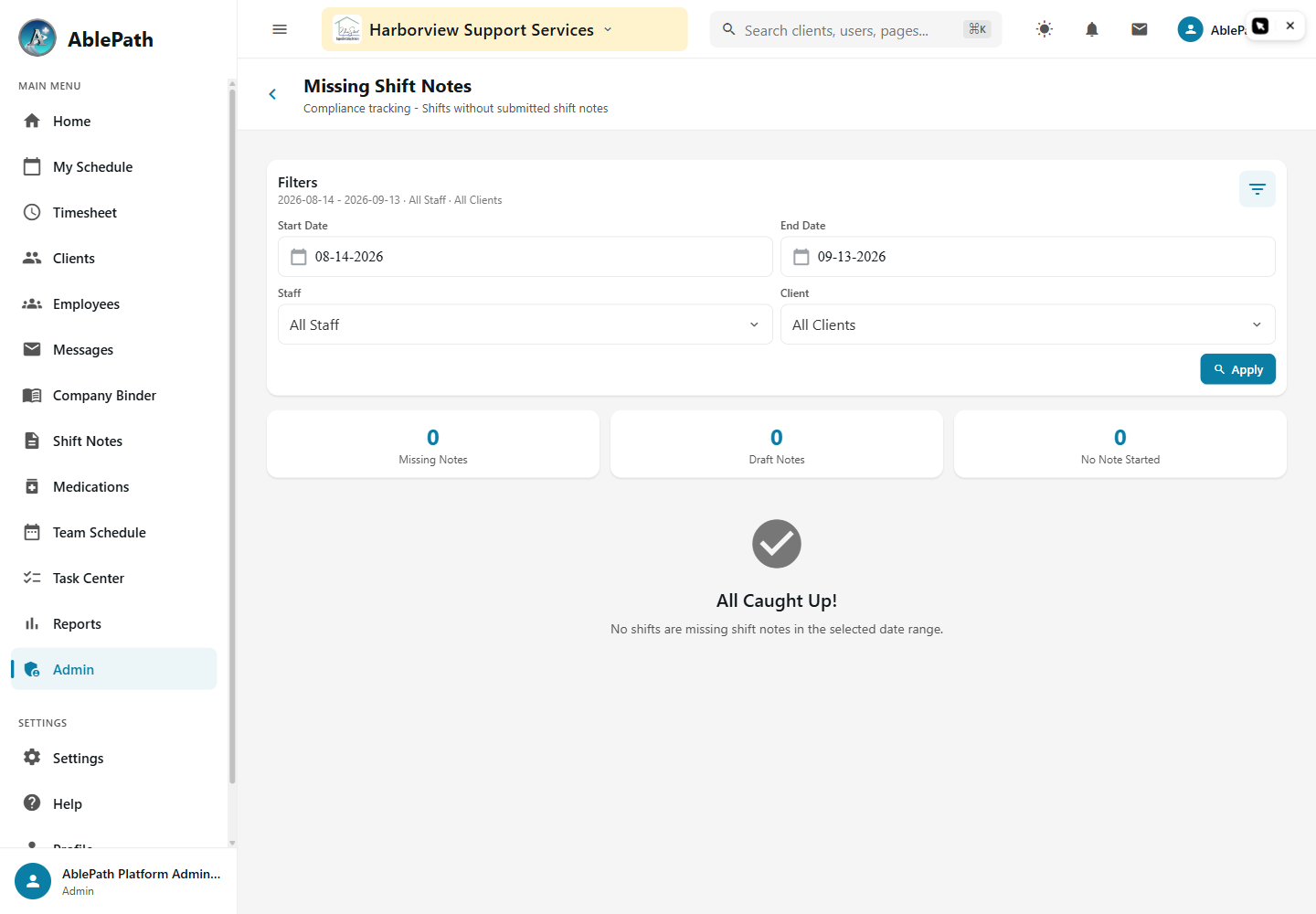
Find shifts missing a shift note
Screen reference: Find shifts missing a shift note. Click to enlarge.
Set a date range (defaults to the last 30 days) and optionally filter by staff member or client.
Each row shows the shift's clock-in/out times, hours, and whether a note was never started or only saved as a draft.
Tap a row to jump straight to that shift's note and complete it.
GotchaThis is the same underlying gap the DDS eBilling export flags as "Missing Shift Notes" when it blocks a visit from billing — use this screen to clear the backlog proactively instead of discovering it mid-export.
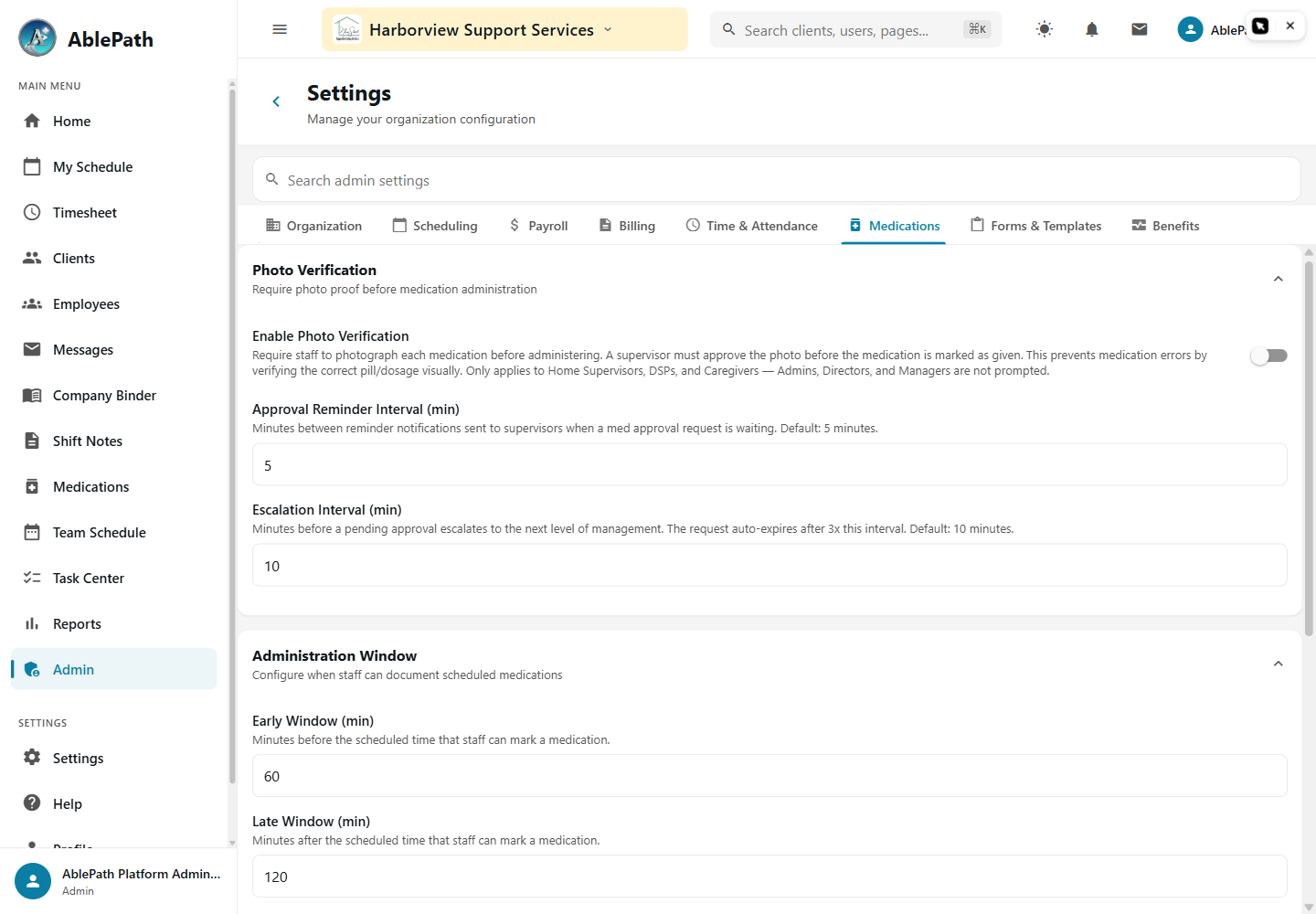
Configure medication administration windows and alerts
Screen reference: Configure medication administration windows and alerts. Click to enlarge.
Photo Verification: require a photo for medication approvals, plus reminder and escalation minutes.
Administration Window: the early and late window (in minutes) that define when a scheduled dose counts as on-time.
Notifications: toggle PRN-limit alerts, dose-status alerts, medication-change alerts, and switches to disable gap notifications or the clock-out medication block.
GotchaThe early/late administration window here is the same timing the auto-miss sweep uses to decide when an unlogged dose becomes "missed" — if doses are being marked missed too aggressively or too leniently, this is the setting to check.
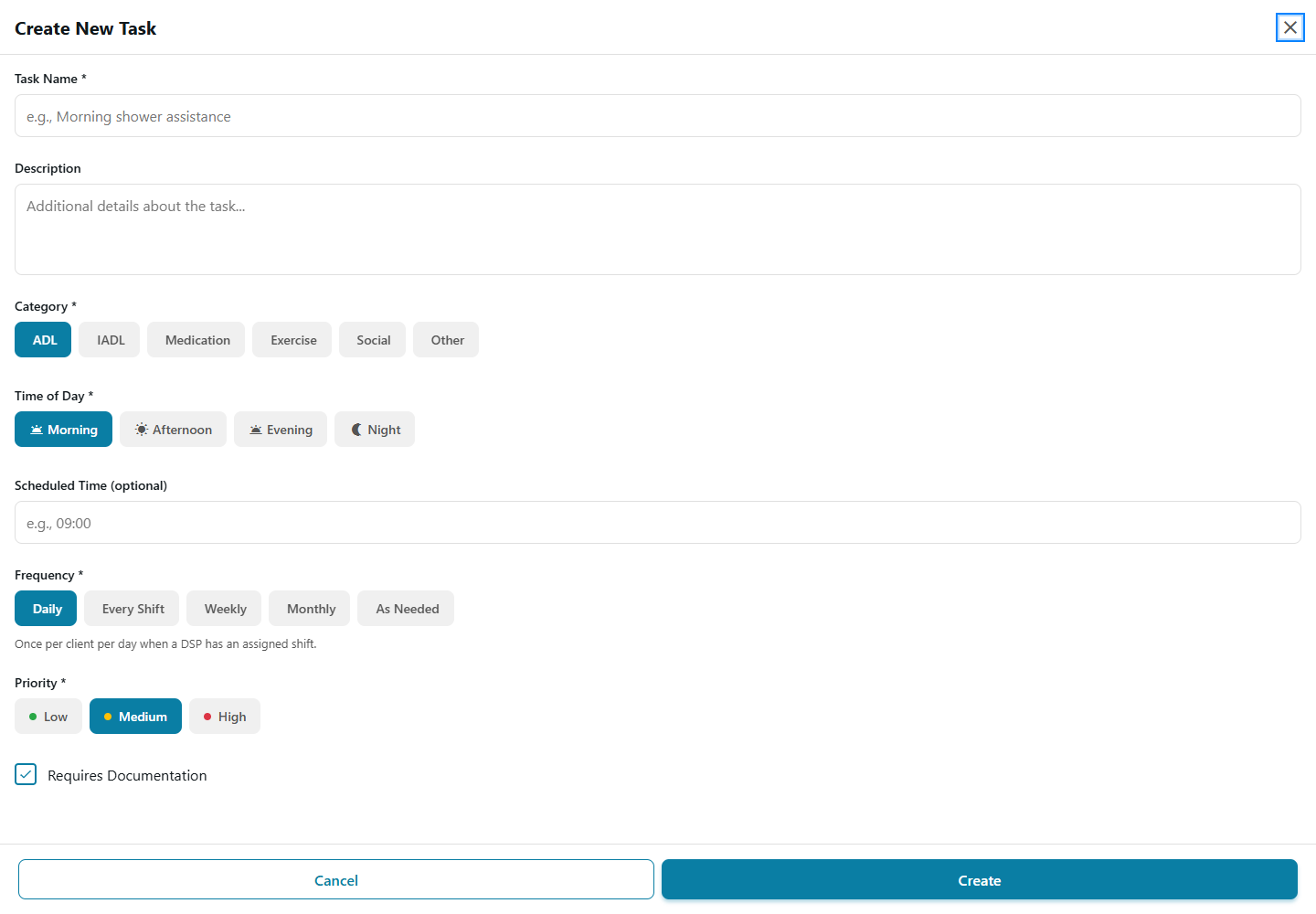
Define care plan task templates
Screen reference: Define care plan task templates. Click to enlarge.
WhoManager and aboveWhereClient profile → Care Plan area → new/edit task
Give the task a name, description, and category (ADL, IADL, Medication, Exercise, Social, or Other).
Set the time of day (Morning/Afternoon/Evening/Night) and priority (Low/Medium/High).
Choose a frequency: Daily, Every Shift, Weekly, Monthly, or As Needed — each has different scheduling behavior (e.g. "Every Shift" appears on every assigned shift, "As Needed" never counts as overdue).
Toggle whether it requires documentation, and whether it's Active.
GotchaThis is where the tasks shown on the "Complete or monitor care plan tasks" screen actually come from — if a task isn't showing up for a DSP to complete, check here first for whether it's Active and whether its frequency matches an actual scheduled shift.